Learn each role, menu and workflow in the current application. PostgreSQL 14 or newer is required; the development instance uses PostgreSQL 18.
Install SignalHub and finish setup in the browser
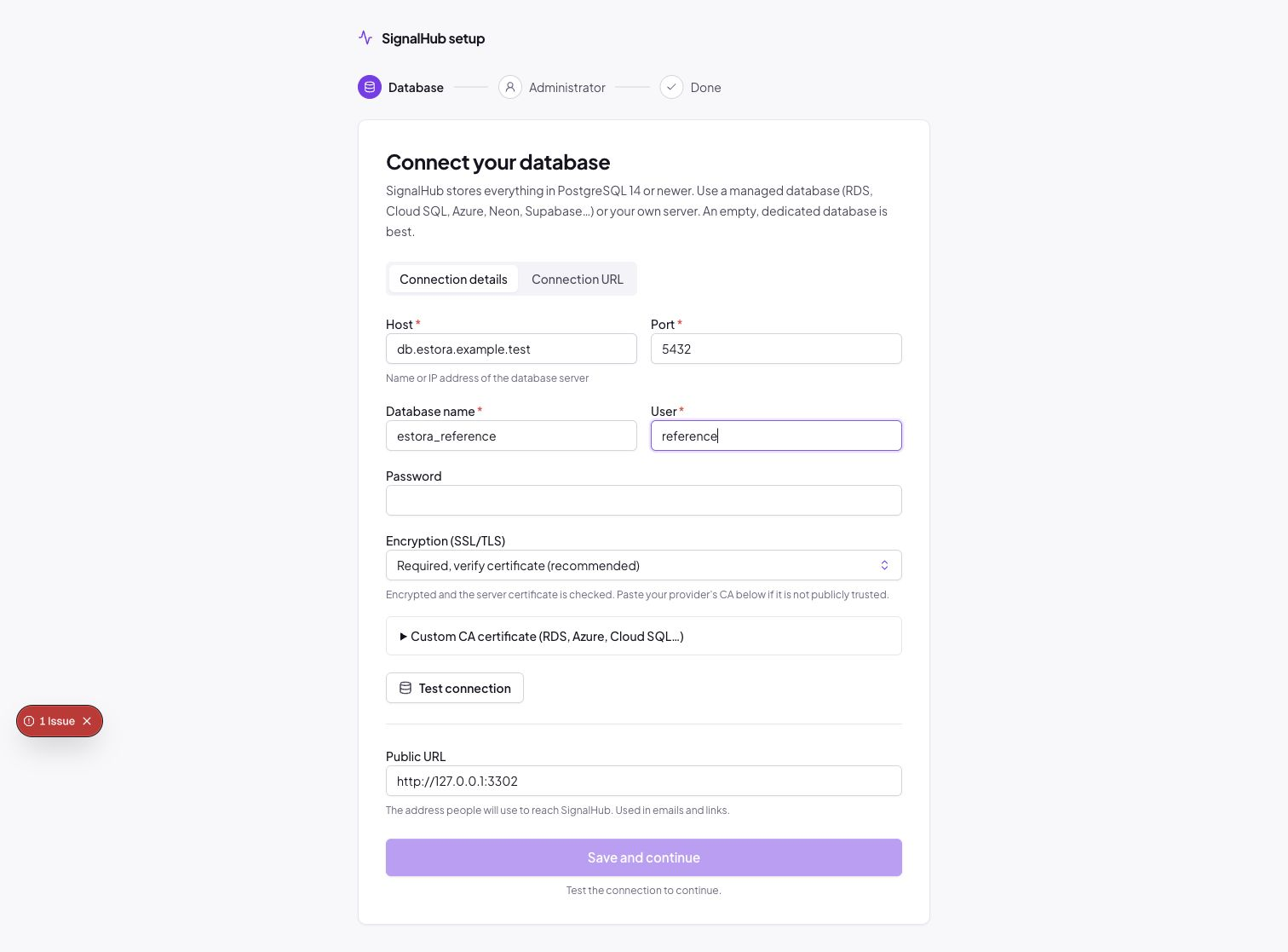
Setup step 2: the database connection is tested in plain language.
SignalHub needs one thing from outside: a PostgreSQL 14+ database. On first start it has no database and no administrator, so it serves only the setup wizard at /setup. Every other page redirects there until setup is finished.
Choose how to run it
Where
Command
Setup link
Any Docker host or VPS
./install.sh (or docker compose up -d)
http://localhost:3301/setup, or https://DOMAIN/setup
Node.js, no Docker (production)
npm ci && npm run build && npm run start:all
http://localhost:3301/setup
Node.js (development)
npm run dev (web) or npm run dev:all (web + worker)
http://localhost:3301/setup
Kubernetes, PaaS, cloud
Set DATABASE_URL, SESSION_SECRET, ENCRYPTION_KEY, STATUS_BOOTSTRAP_PASSWORD
No wizard: the administrator is created on start
With Node.js, start:all runs migrations, the web server and the background worker under one supervisor. It listens on 127.0.0.1:3301 by default (change with PORT and SIGNALHUB_HOST) and keeps its setup file in ./data (SIGNALHUB_DATA_DIR). In development, npm run dev and npm run dev:all open the wizard when .env has no DATABASE_URL; with one, they migrate and start as before. npm run dev:web is the bare Next.js dev server.
Setup wizard
Database. Enter host, port, database, user, password and encryption mode, or paste a connection URL (a custom CA can be pasted for RDS, Azure or Cloud SQL). Test connection explains problems in plain language. If the server is reachable but the database does not exist, Create database creates it. Confirm the public URL and save; the schema is installed and the page continues on its own.
Administrator. Organization name and ID, your name, email, User ID and password. This account administers the organization and the whole installation. Download the configuration backup offered here: it holds the encryption key.
Done. Sign in at /login.
Terminal instead of browser:signalhubctl setup asks the same questions and runs the same checks (Docker: docker compose exec signalhub node dist-runtime/signalhubctl.mjs setup; Node.js: npm run signalhubctl -- setup).
Restart setup
In the wizard: before the administrator exists, Wrong database? Start over with a different one returns to the database step. Nothing in that database is deleted.
From the command line:signalhubctl setup --reset forgets the saved connection and keeps the secrets. The next start runs the wizard again.
Forgotten passwords
Situation
What to do
A user forgot their password
Forgot password? on the sign-in page emails a one-time link valid for 30 minutes. The answer is the same for unknown accounts and requests are rate-limited. Resetting signs the account out everywhere; two-factor sign-in still applies. Needs email configured in the platform console and a configured public URL; otherwise the page explains who can help.
No email, or the only administrator is locked out
The server operator runs signalhubctl reset-password --username USER_ID. It prints a temporary password that must be changed at sign-in. Add --clear-mfa when the authenticator app is lost.
Back up the configuration. On Docker and Node.js installs the wizard stores the database connection and the generated encryption key in signalhub.json in the data directory. Without that key, stored credentials and subscriber contacts cannot be decrypted.
From first login to a working status page
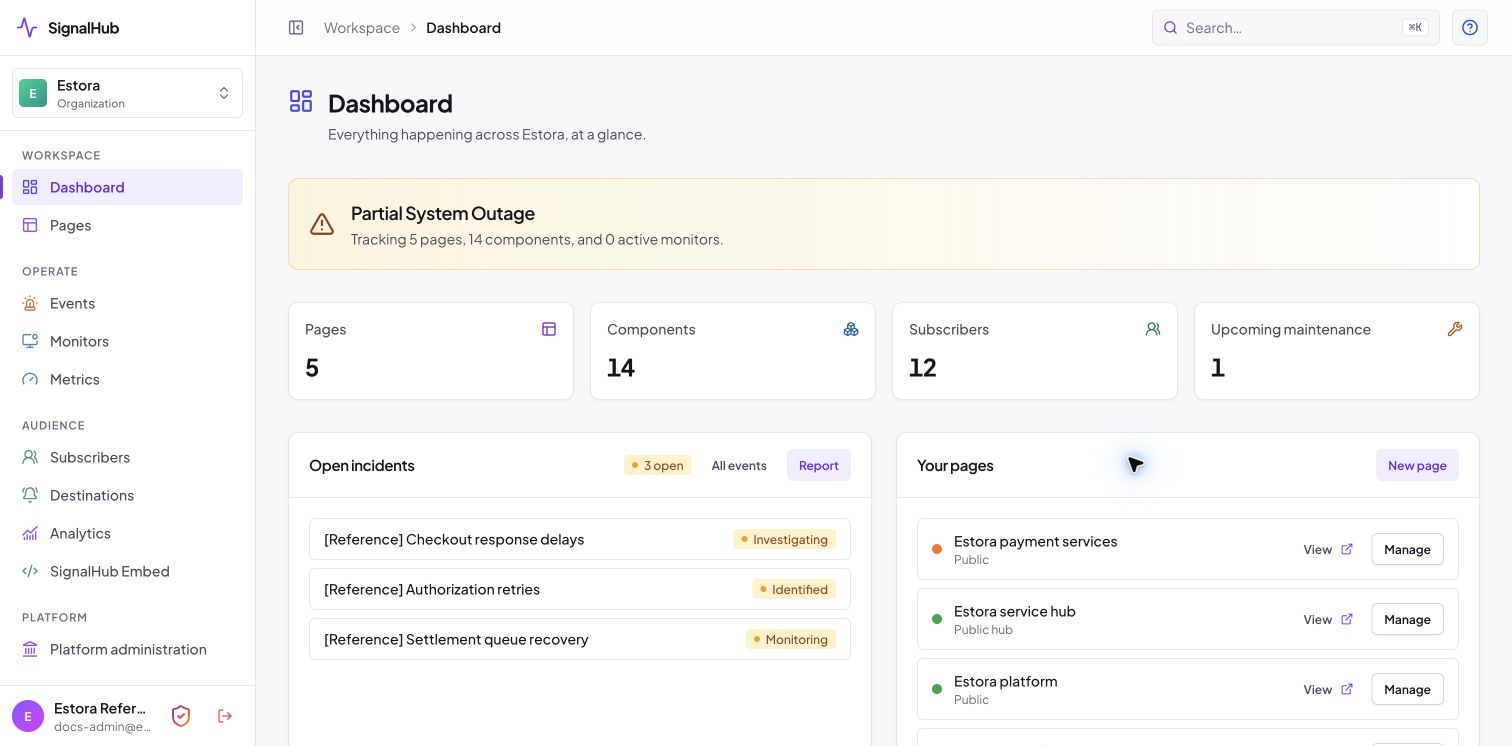
The dashboard: health, counts, open incidents and pages at a glance.
SignalHub separates public status experiences from the authenticated organization console. Operators sign in at /login and use canonical console URLs under /organization. Visitors use a page slug, hub, feed, embed, badge, or public API.
Recommended first outcome: create one page, add one service, publish it, declare and resolve a test incident, verify delivery, and only then connect production monitors.
First Admin login
Open https://your-signalhub-host/login and sign in with the administrator account created in the setup wizard (or the user ID and password supplied by the installation operator).
Change the temporary password. If a profile field is required, complete it before continuing.
If your installation requires authenticator codes you are taken through MFA setup right after the password: scan the QR code, confirm a code and save the recovery codes offline. Then open Security (the shield in the sidebar footer) and verify the session list.
Open Platform administration → Configuration → Organization and confirm the organization name, slug, contact address and retention expectations. Check database, migration and worker health under Configuration → Runtime, and review Security → Identity for sign-in methods.
Open Pages → Create page. Choose a status page unless you are building a portfolio hub.
Complete page details, add at least one visible service, review appearance, configure optional notifications, and publish.
Use View public page in a private browser window. Confirm the page, history, subscription controls, and mobile layout.
Create a test incident, add an update, resolve it, and verify public history and enabled destinations.
Before production use
People
Assign Admin, incident, responder, and viewer responsibilities.
Define who may publish customer communication.
Keep a tested local Admin recovery path.
Content
Name services in customer language.
Prepare clear incident and maintenance messages.
Agree on severity, impact, and update cadence.
Delivery
Verify SMTP and optional SMS.
Test Slack, Teams, and signed webhooks.
Confirm the worker is ready before relying on delivery.
Recovery
Back up PostgreSQL and assets.
Restore into an isolated environment.
Monitor SignalHub from outside its primary infrastructure.
Give each person only the access they need
Role
Use it for
Core access
Admin
Organization and installation owners/operators.
All organization capabilities, users, pages, integrations, settings, and installation administration.
Incident Manager
Communications leads and incident commanders.
Incident lifecycle and updates, component updates, subscribers, and analytics.
Responder
On-call engineers and service responders.
Incident updates, monitors, component updates, and analytics.
Viewer
Leadership, support, and read-only stakeholders.
Analytics views.
Non-Admin memberships can be limited to selected page IDs. Page scope applies on the server and affects pages, incidents, monitors, metrics, and other page-owned resources. An empty page selection means all pages for that membership.
Menu visibility is not the security boundary. SignalHub checks authorization in server actions and API routes. If a user can see an unexpected menu item, still report it, but do not assume hidden controls are the only protection.
What every organization menu is for
Group / item
When to use it
Typical action
Workspace · Dashboard
Start and end an operator shift; review active incidents, scheduled maintenance, worker state, and page readiness.
Open the item needing attention.
Workspace · Pages
Create, publish, group, and manage public, private, audience, and hub experiences. Each page has Overview, Status pages (hubs), Appearance, Notifications and Settings tabs.
Create page; continue setup; view public output.
Operate · Events
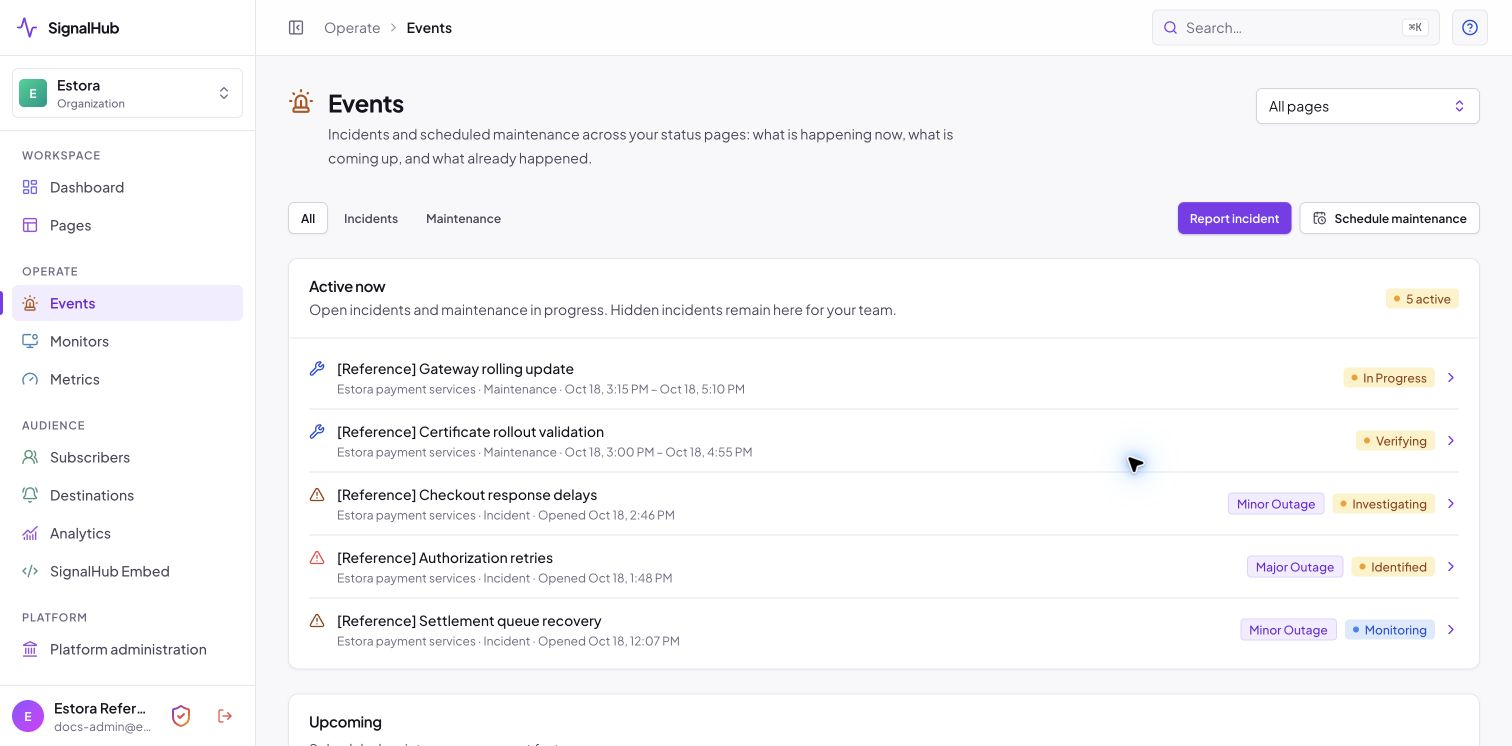
One view of incidents and maintenance: what is happening now, what is coming, and what already happened. Declare incidents and schedule maintenance from here.
Declare, update, resolve, edit timeline, publish postmortem; schedule a window.
Operate · Monitors
Check availability and optionally reconcile component status.
Create a check; edit thresholds, authentication, proxies and automated actions.
Operate · Metrics
Publish numeric service indicators.
Create a metric and push data points.
Audience · Subscribers
Review and manage verified contacts for a selected page.
Import, quarantine, export, or inspect state.
Audience · Destinations
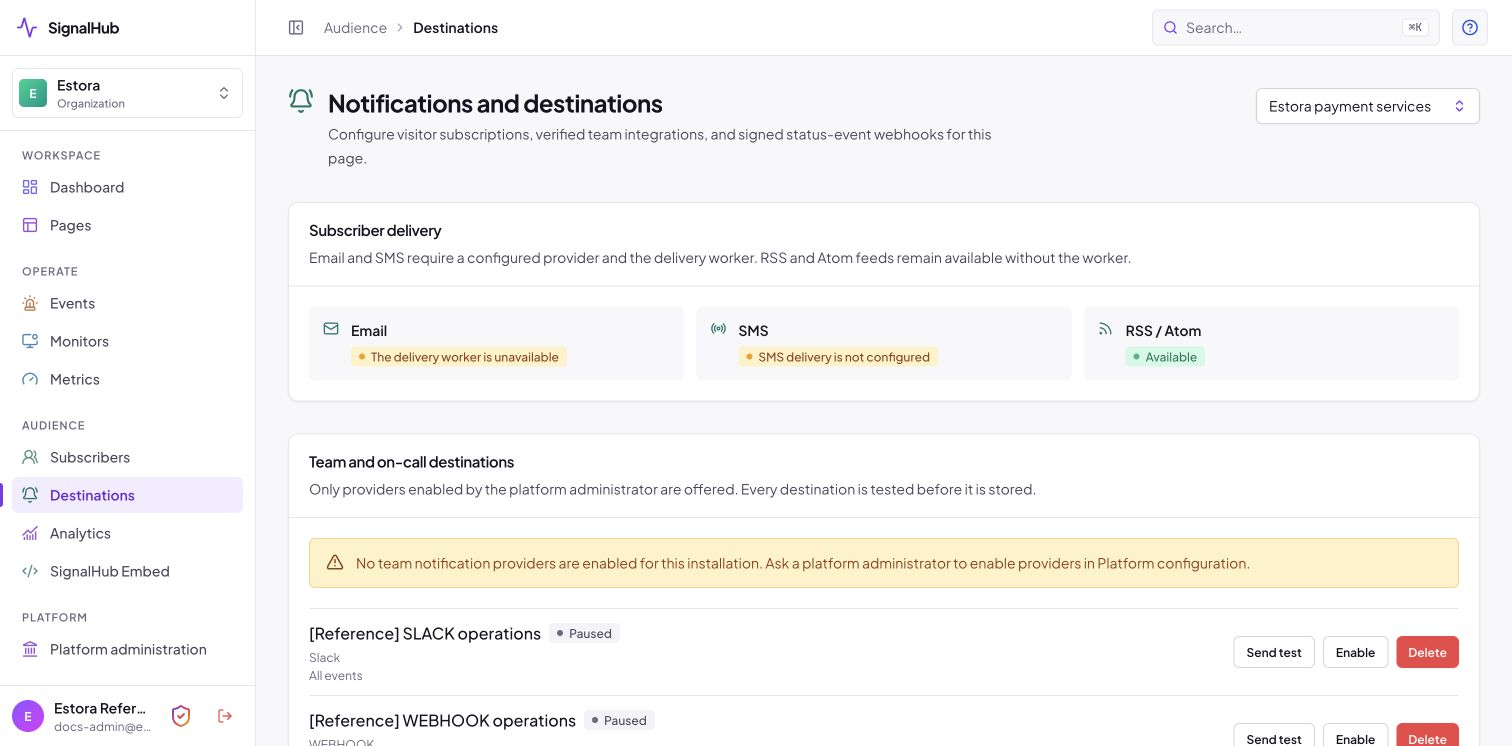
Configure team channels and signed event endpoints, and see whether email, SMS and feeds are ready.
Test and save Slack, Teams, or webhook destinations.
Audience · Analytics
Understand page visits, engagement, and subscriber activity without exposing visitor identity.
Select a page and time range.
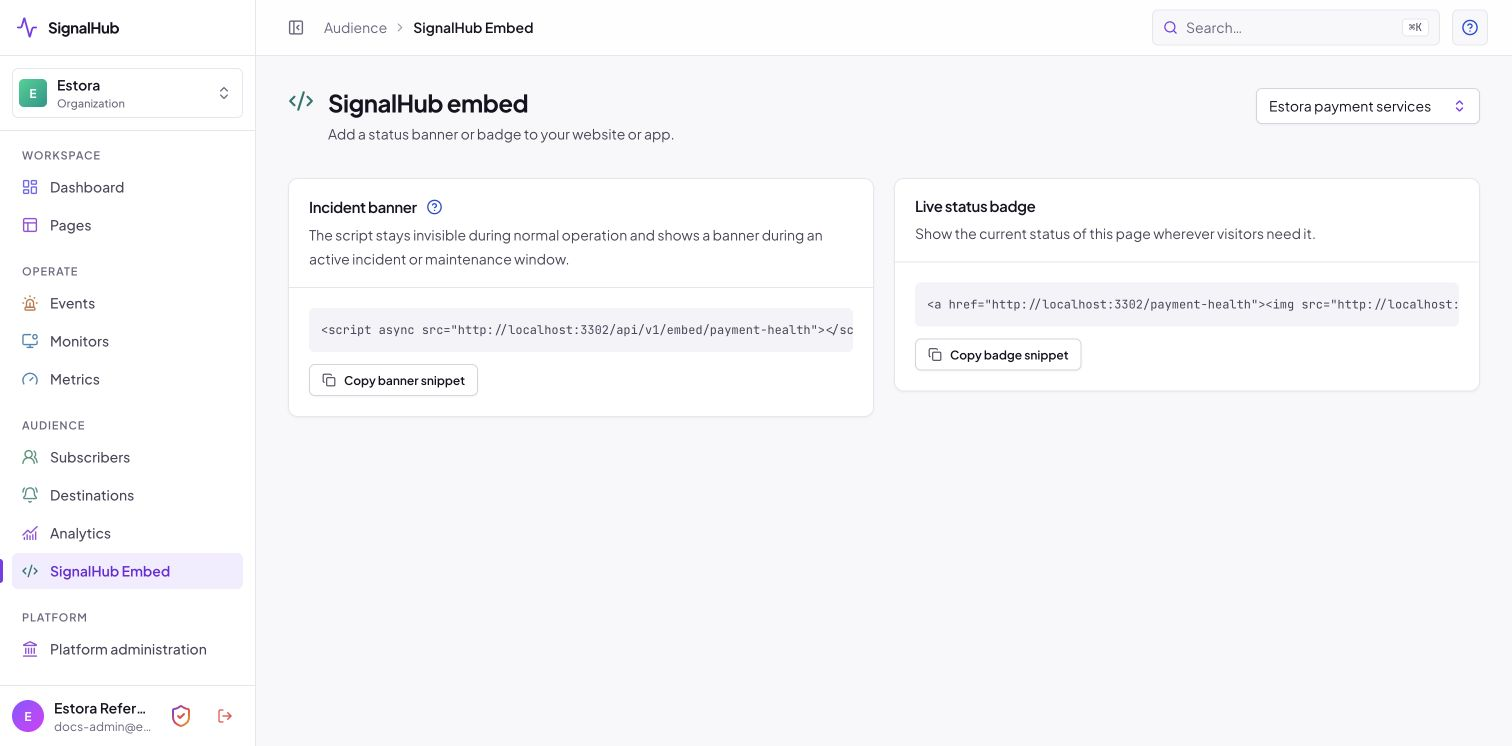
Audience · SignalHub Embed
Show incident state on another website.
Copy the script or badge snippet.
Platform · Platform administration
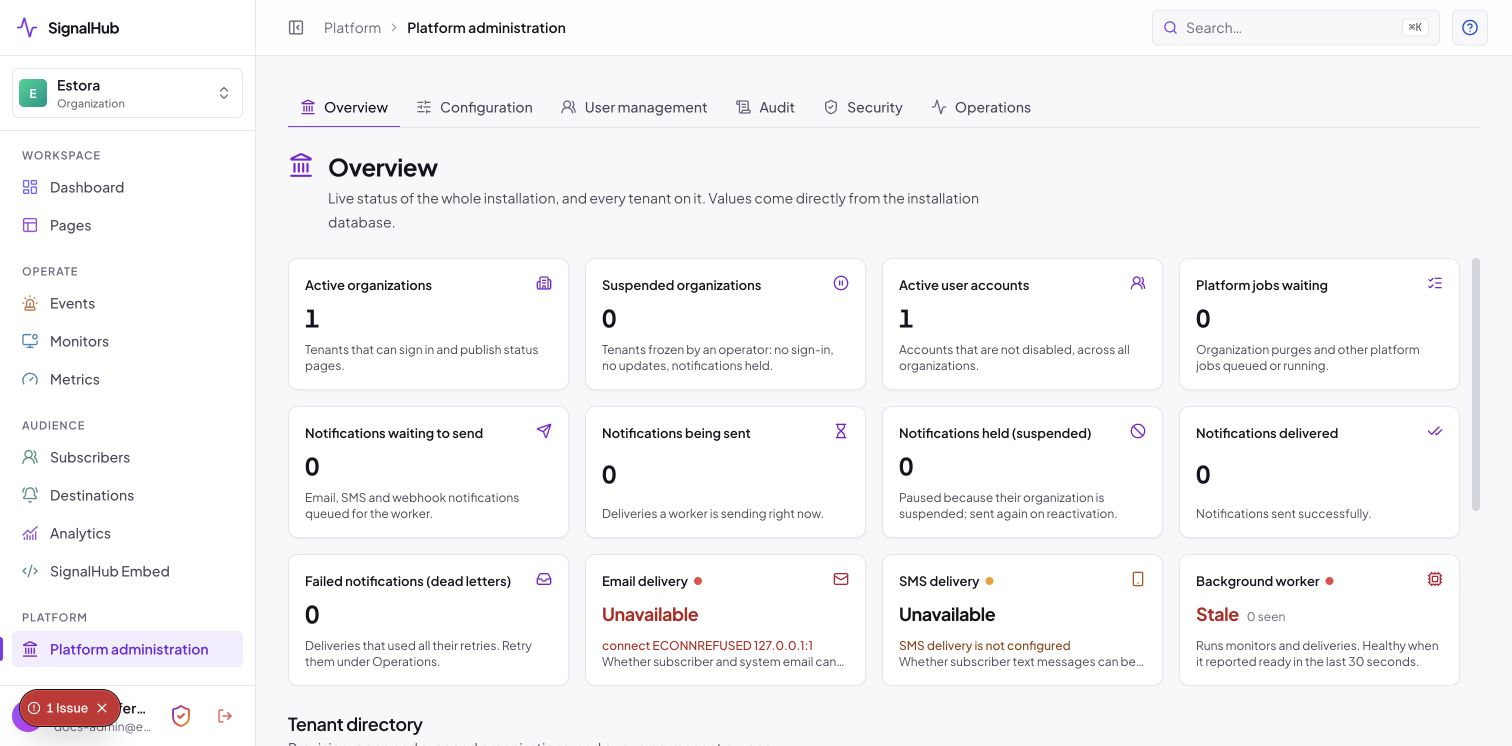
Admin-only installation management. Tabs: Overview, Configuration (Platform settings, Runtime and Organization), User management (Users and Teams), Audit, Security (Identity, MFA requests, API keys) and Operations.
Search an article; return here for the full manual.
Sidebar footer · Security (shield)
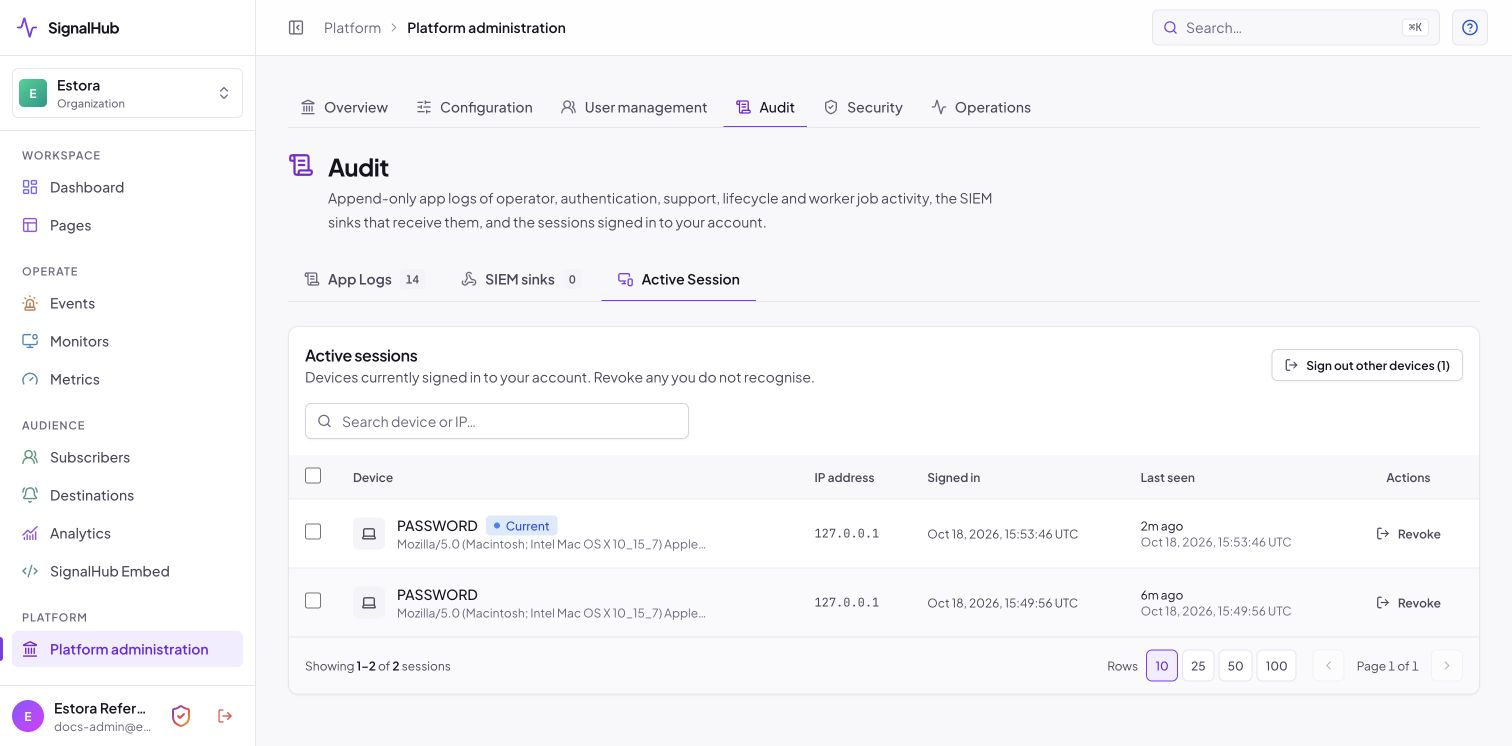
Manage your own MFA devices, recovery codes and signed-in sessions. Admins find the same cards under Platform administration → Security (MFA) and Audit (sessions).
Enroll, review, or revoke. SSO and SCIM are configured by installation Admins.
Design the right status experience for each audience
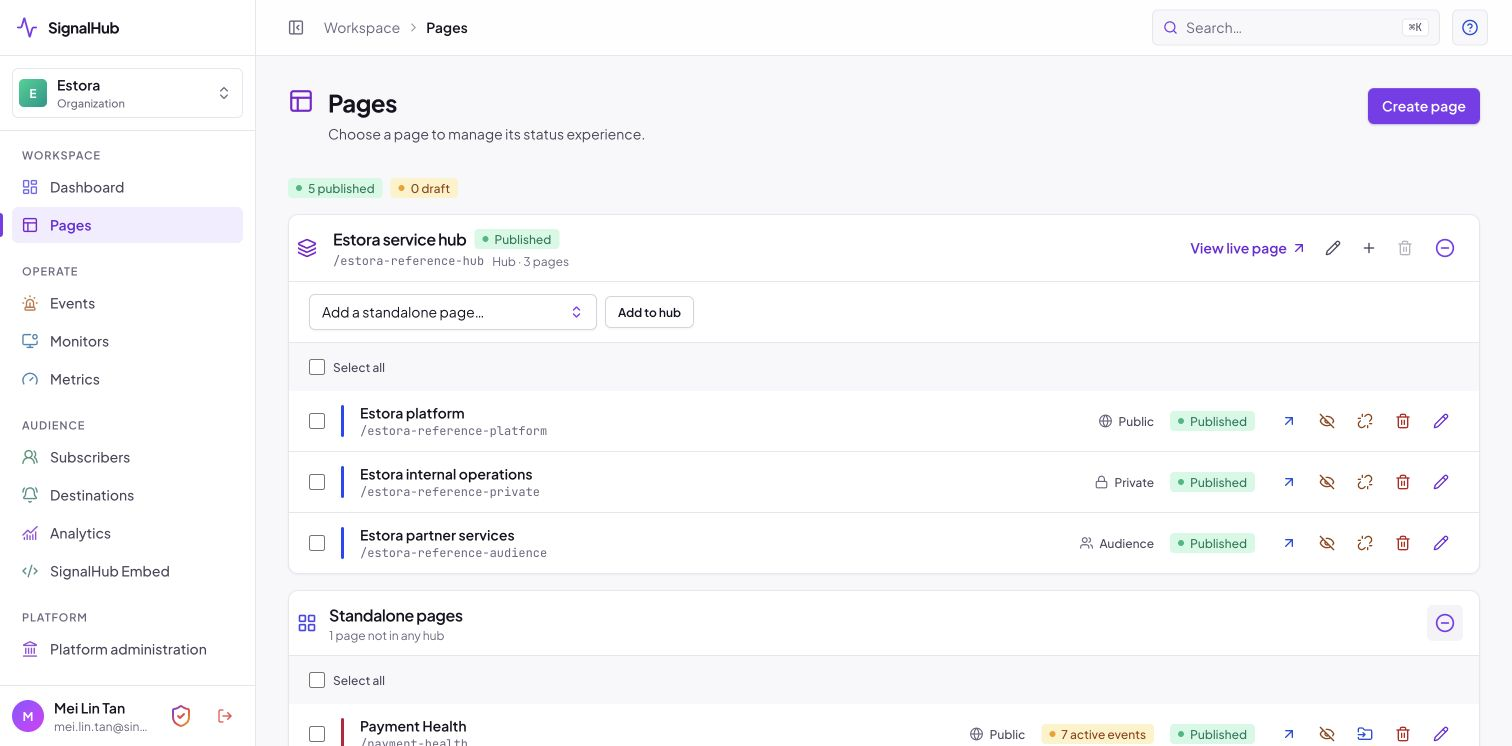
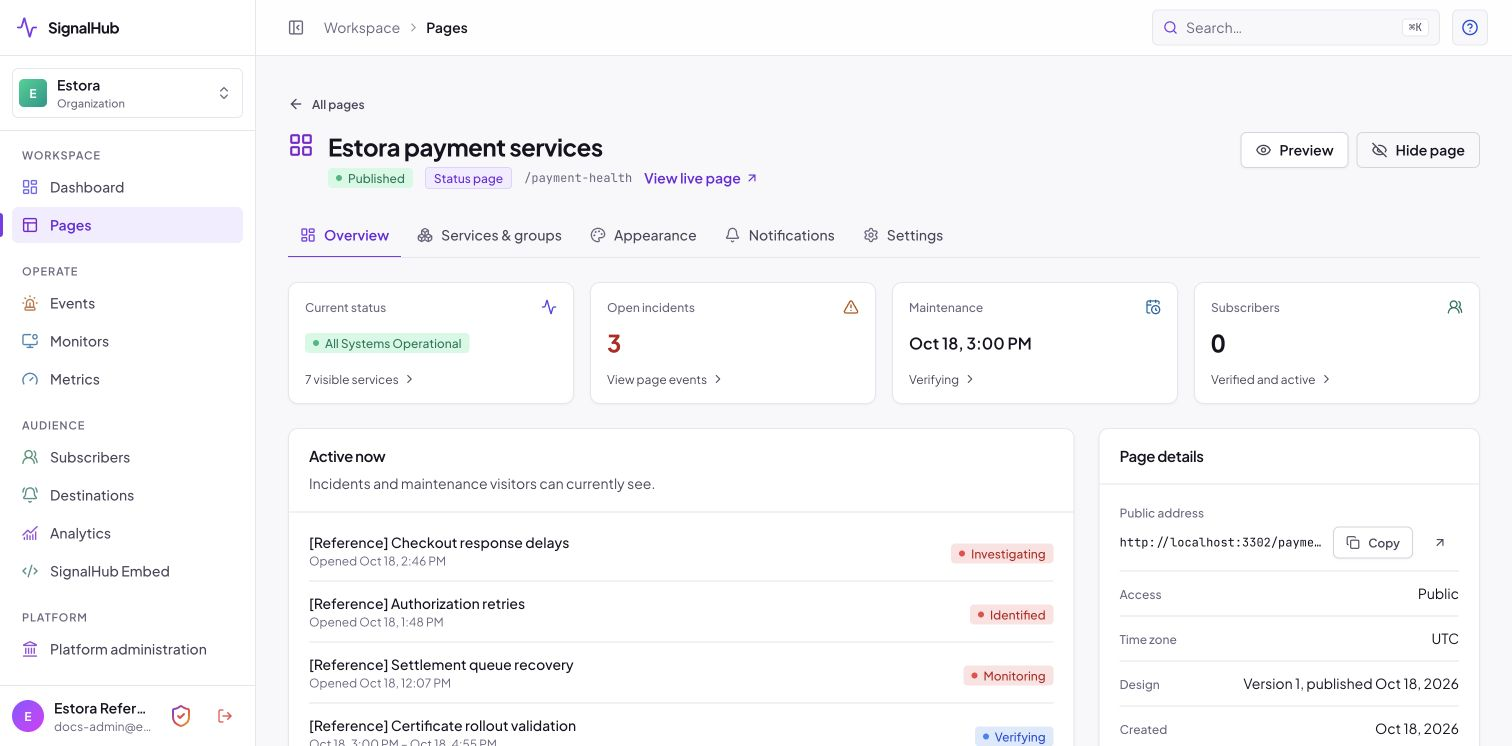
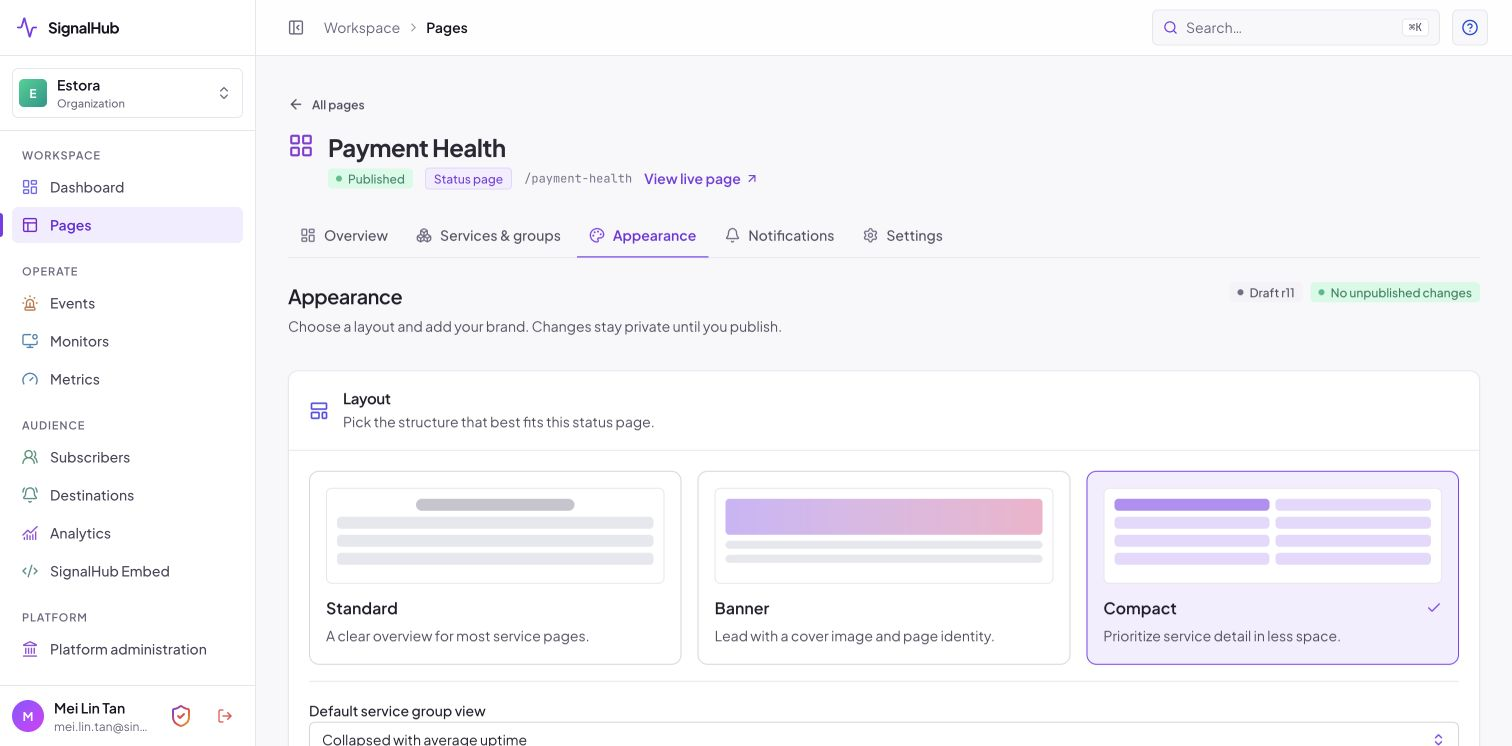
Pages and hubs in one list.A page overview: contents, access and design version.Appearance: layout, style and branding. Changes stay a draft until you publish.
Choose the page type
Type
Use when
Access model
Public status page
Anyone should see health and incident history.
No sign-in; optional verified subscriptions.
Private page
The whole page is restricted to approved viewers.
Access challenge and configured policy.
Audience page
Different users/groups should see scoped components.
Audience identities and groups determine visibility.
Hub
A portfolio, region, brand, or business unit needs a parent directory.
Contains child status pages instead of service components.
Page creation and publication
Open Pages → Create page, select page or hub, choose a stable slug, and optionally assign a parent hub.
Open Services & groups. Add or manage groups from the Group field. Select the green save icon to publish a changed service status. Drag a six-dot handle to reorder; dropping saves automatically, including on filtered or paginated lists. Choose Page order and turn off grouping first. For a hub, create or attach child pages.
Open Appearance. Choose a Standard, Banner, or Compact layout, then pick a style tile (each tile previews its colors), adjust the brand color, add footer links and search details, and upload a logo, site icon, and optional cover image. Changes autosave as a draft until you select Publish changes.
For private or audience pages, open Access and configure allowed identities/groups and component scope. Test with a non-Admin account.
Open Notifications to review subscriber channels, set the email sender name, reply-to address, and footer, and manage team destinations and webhooks.
Open the page's Settings tab to set the page name, headline, about text, time zone (used for dates and maintenance windows), search-engine indexing, and destructive controls.
Publish from the overview. A status page needs at least one visible service; a hub can publish its page directory.
Page-management tabs
Tab
Purpose
Operational advice
Overview
Setup steps, publication state, access type, and quick links.
Use before launch and after major design changes.
Services & groups
Services and groups for a page; child pages for a hub.
Prefer customer language over internal system names.
Choose the clearest layout, let drafts autosave, and publish deliberately.
Access
Private/audience identities, groups, and component visibility.
Test least-privilege access in a private session.
Notifications
Subscriber channels, email branding, team destinations, and webhooks.
Verify providers and worker readiness before launch.
Settings
Name, headline, about text, time zone, indexing, and page lifecycle.
Deleting a page is permanent; export what you need first.
Effective component status: manual status, active incidents, active maintenance, and linked monitor state are reconciled. Recovery from one source does not automatically clear another active source.
Communicate unplanned disruption with a durable timeline
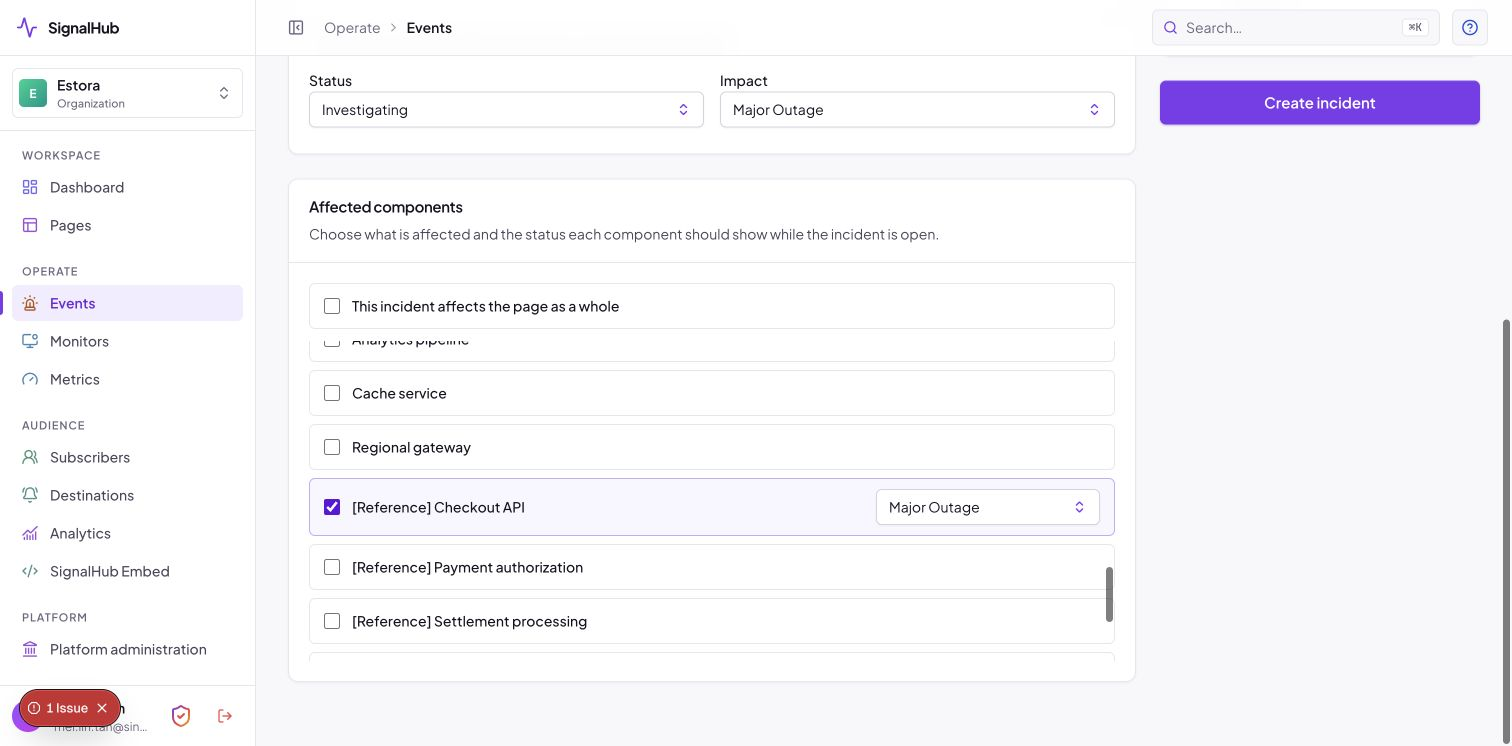
Declare an incident: message, status, impact, affected components and whether to notify subscribers.The Events view lists what is happening now and what is coming.
Investigating→Identified→Monitoring→Resolved
Declare an incident
Confirm the affected customer experience. Do not wait for complete root-cause certainty before acknowledging a clear impact.
Open Events → Declare incident, choose the page, and enter a plain-language title.
Select status, severity/impact, affected services, and the first public update. State what users observe, what the team is doing, and when the next update is expected.
Review whether subscriber notifications should be sent. Publish and verify the public page and delivery history.
Update cadence
Investigating: acknowledge symptoms and scope; avoid unsupported causes.
Identified: explain the known cause or failing dependency and mitigation underway.
Monitoring: report the mitigation and what signals are being watched.
Resolved: state restoration time, customer outcome, and whether a postmortem will follow.
Add a new update when state, impact, workaround, scope, or estimated recovery changes. If nothing changes, keep the promised cadence and say the investigation continues.
Edit timeline and publish a postmortem
Authorized users can correct an update while preserving the incident's durable chronology. Use edits for accuracy, not to hide operational history. After resolution, add a postmortem with impact, timeline, cause, contributing conditions, recovery, corrective actions, owners, and target dates.
Do not use maintenance for an unplanned outage. If customers are unexpectedly affected, declare an incident even when work is already underway.
Set expectations before planned work begins
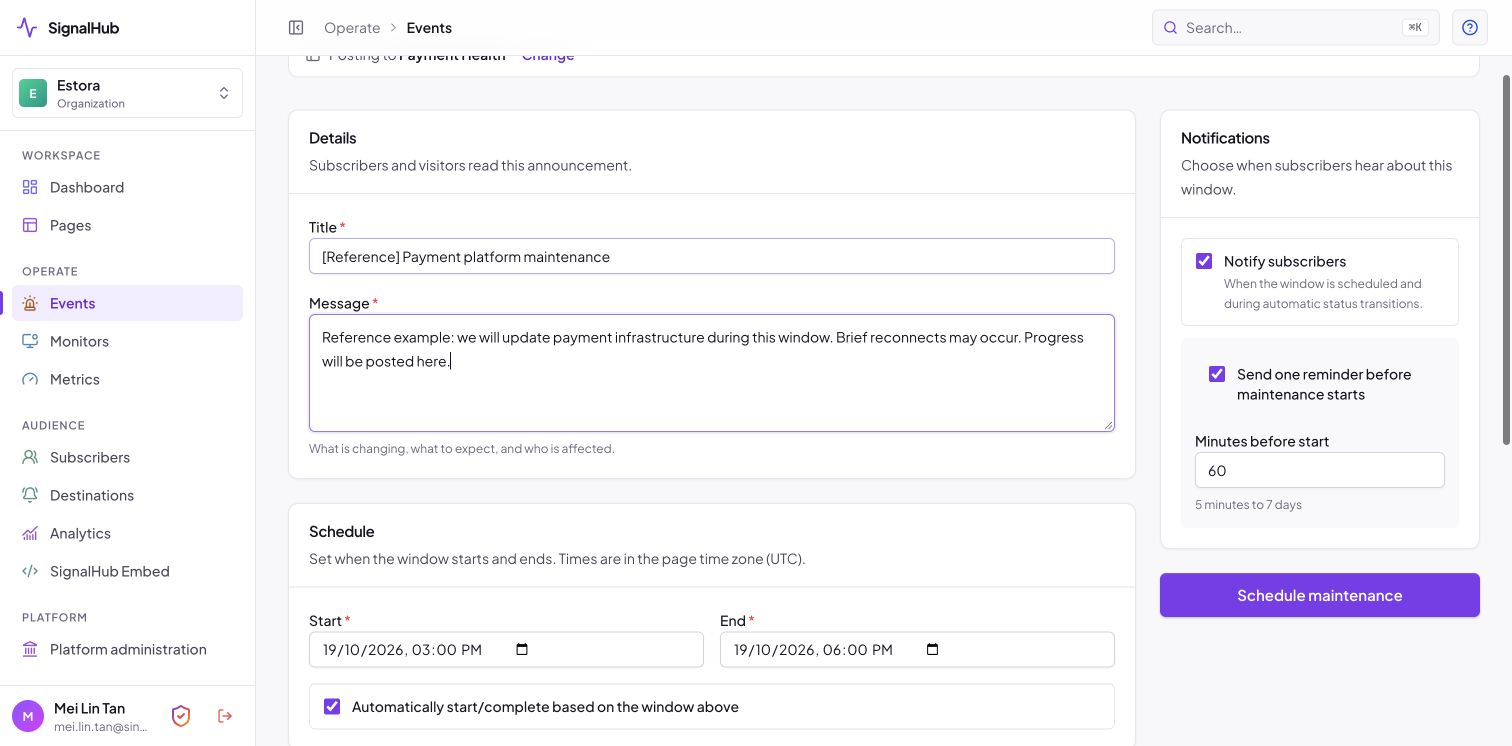
Schedule maintenance: window, message, reminder and automatic start and completion.
Open Events → Schedule maintenance, choose a page, title, start time, duration, and clear customer-facing description.
Select affected services and the status they should display, normally Under Maintenance.
Enable automatic transition when the worker should move the window to In Progress at the start and Completed at the end.
Publish early enough for subscribers to plan. Verify timezone presentation and enabled delivery channels.
At start, confirm the real work matches the announced scope. If impact becomes unexpected or exceeds the plan, open an incident.
At completion, verify service health and public component state before closing the window.
Detect failure without creating noisy public status changes
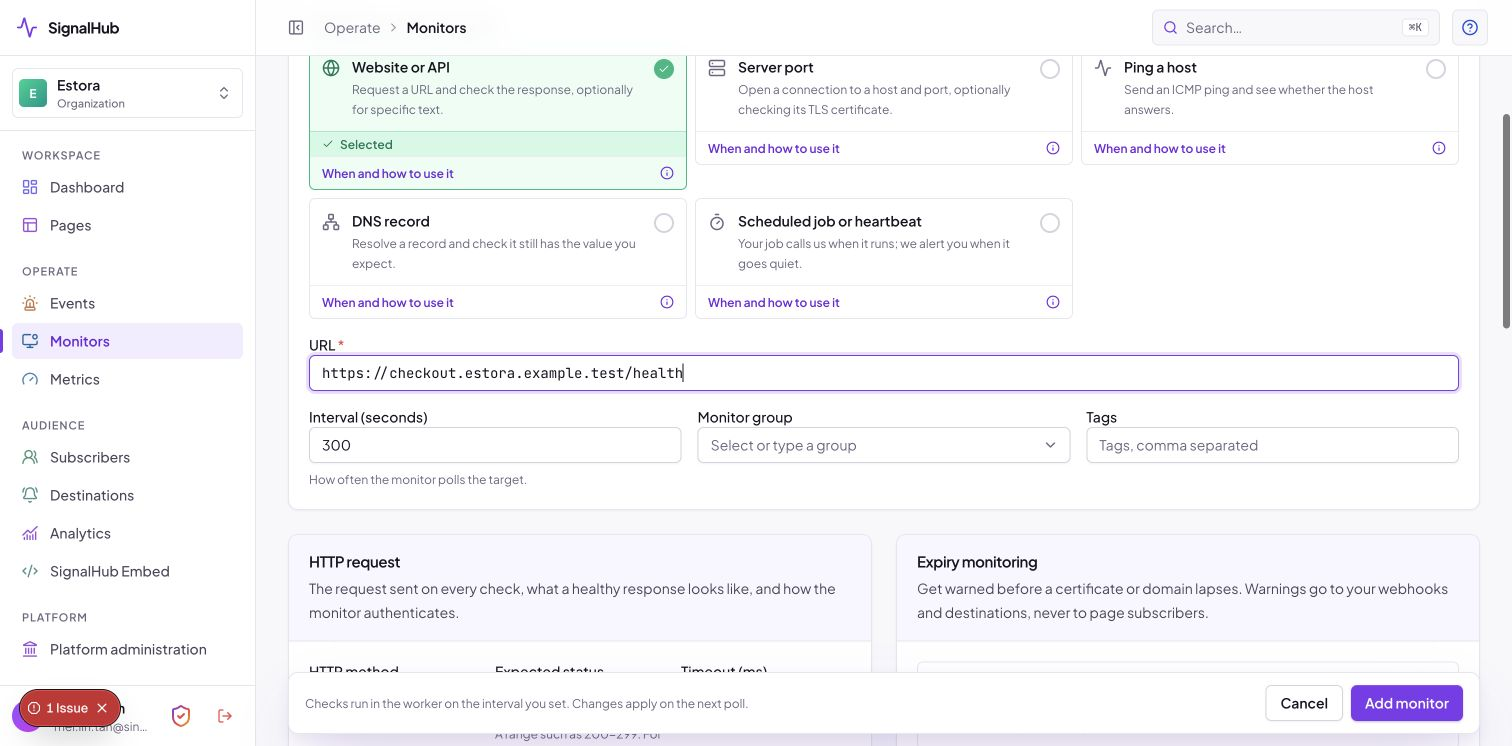
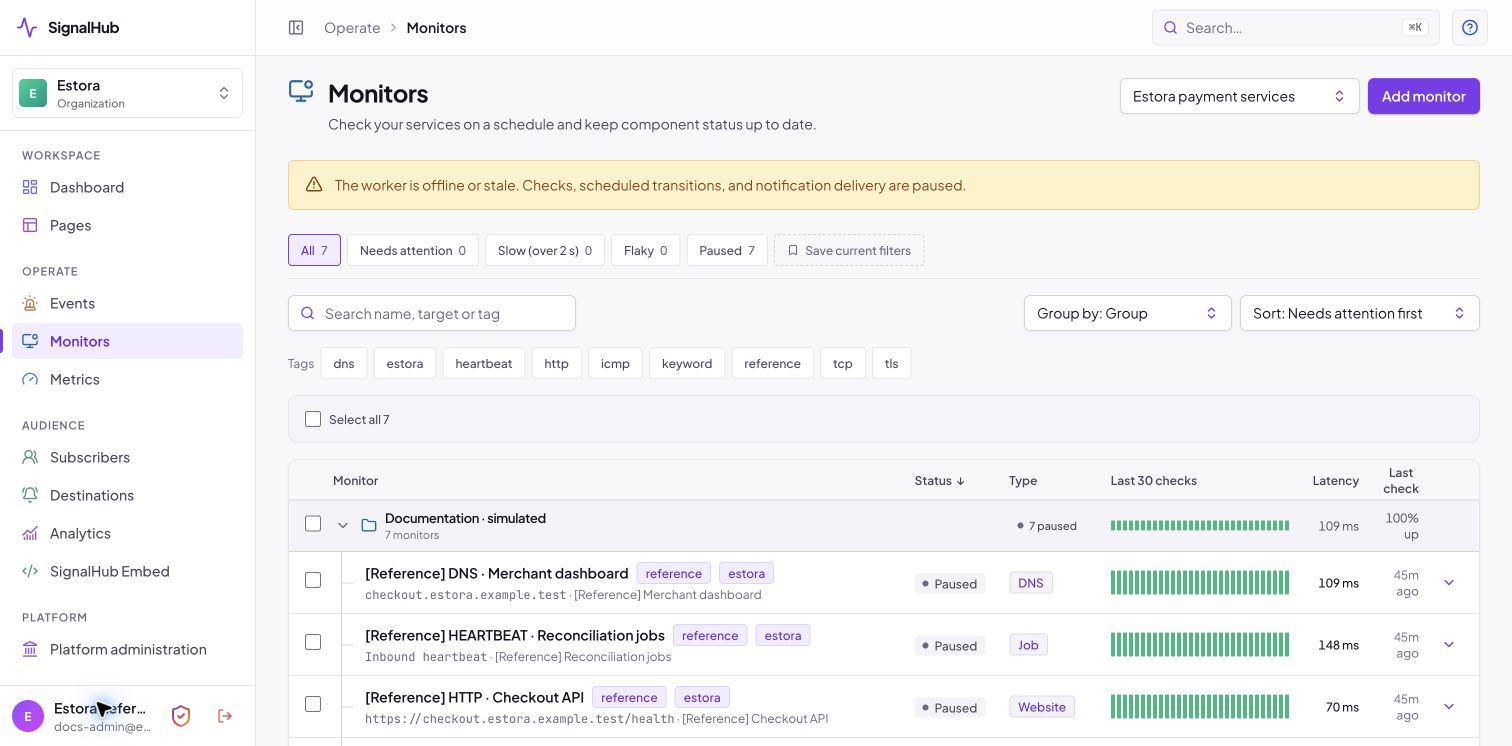
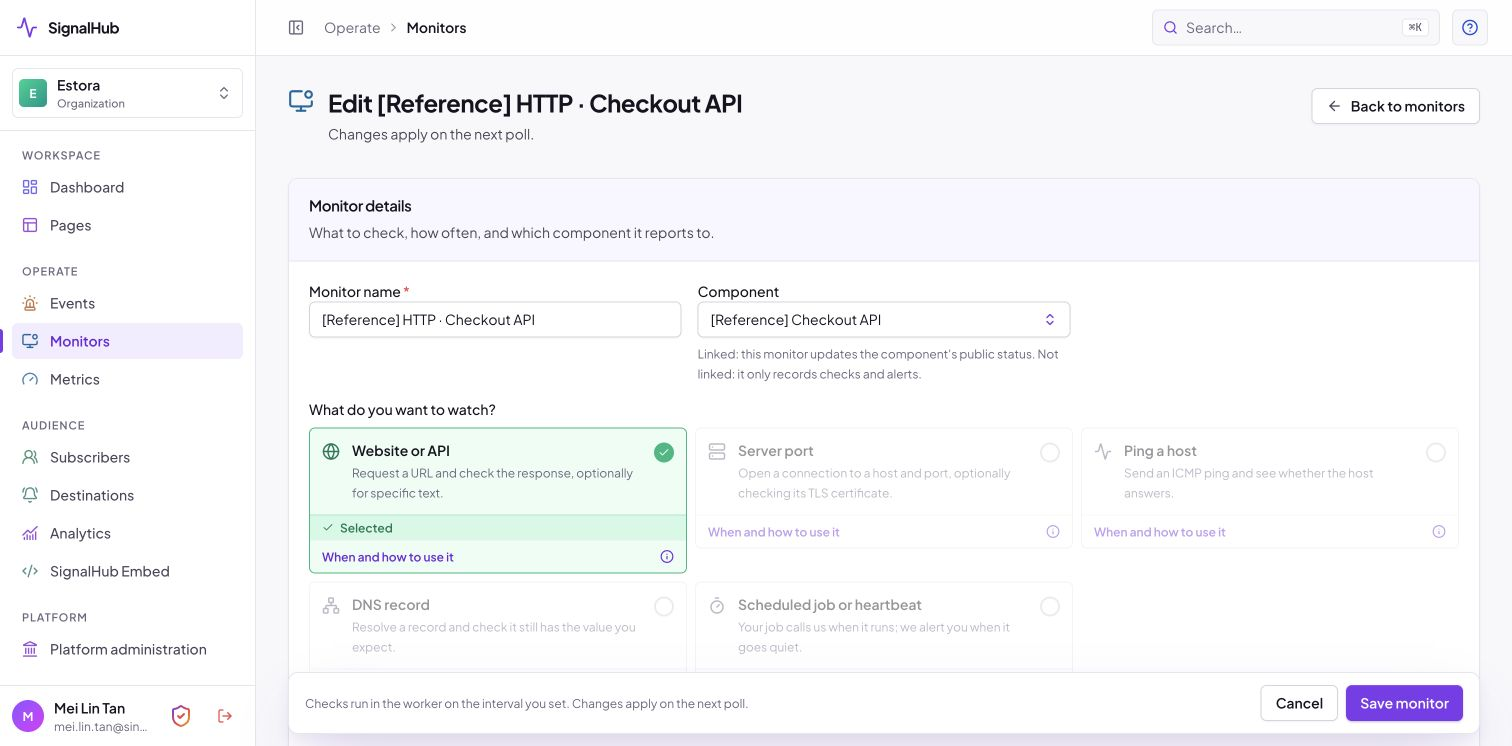
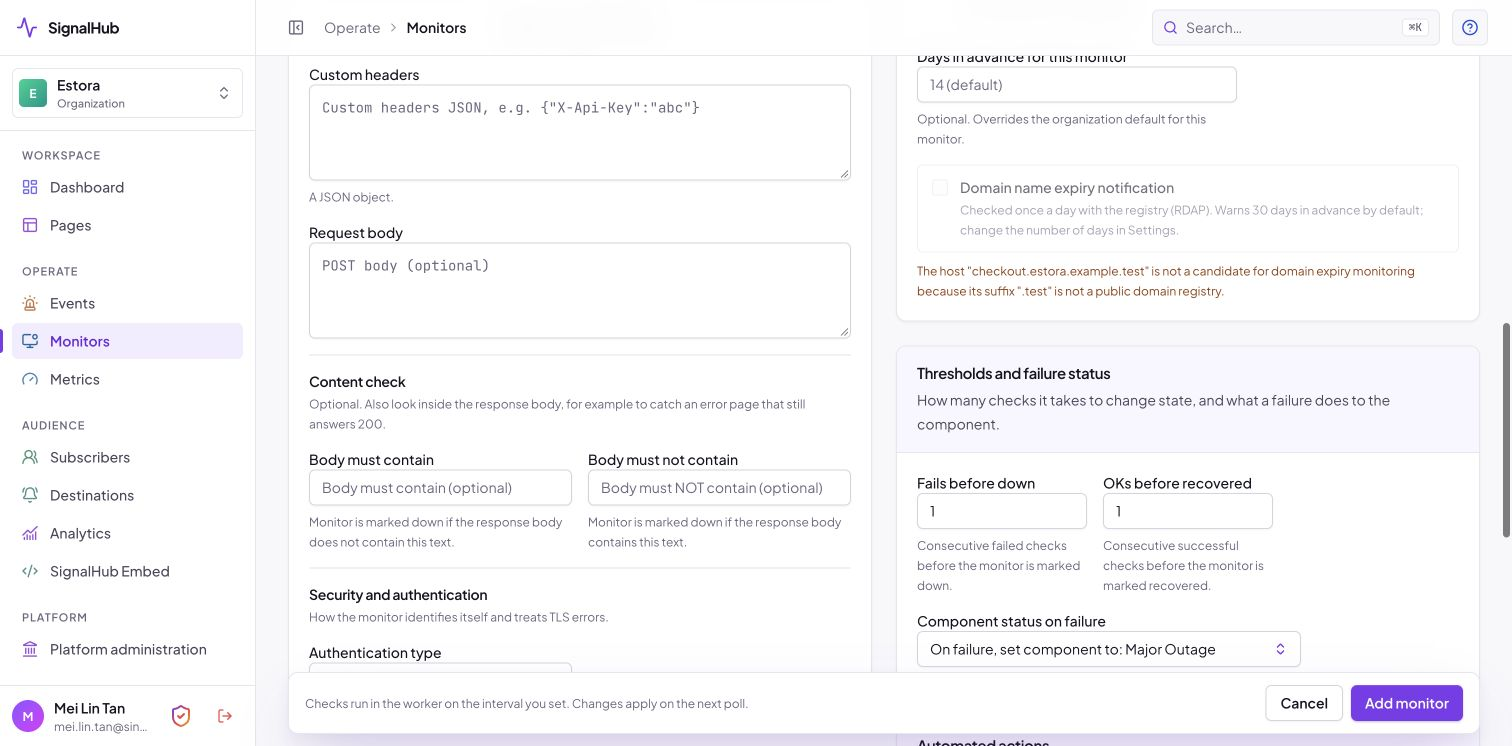
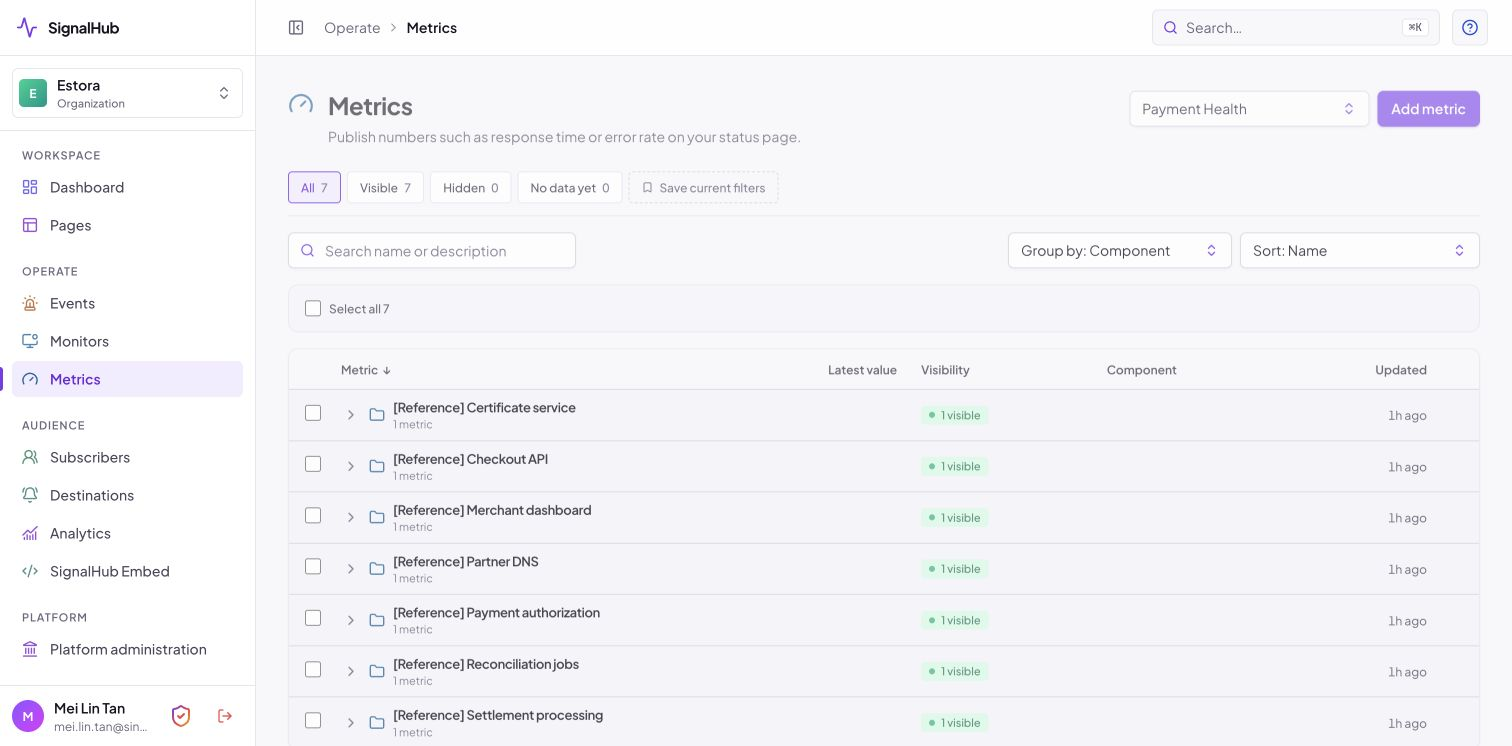
Add a monitor: choose what to watch, how often, and which component it updates.Monitors with uptime bars and latency.Editing a monitor: details, what to watch, request, content check and expiry monitoring.Thresholds, the status a failure sets, and the automated actions: flip the component, record a metric, open an incident, notify subscribers.Metrics, with per-metric visibility on the public page.
Monitor
Use it for
Key configuration
HTTP
Web/API availability.
Method, URL, headers/body/auth, expected status range, timeout, response limit.
Keyword
Confirm response content, not only reachability.
Expected text and HTTP behavior.
TCP
Port-level reachability.
Host, port, timeout.
DNS
Name resolution and expected records.
Name, record type, expected response.
SSL certificate
Certificate validity and expiry warning.
TLS hostname and threshold.
ICMP
Network reachability where the runtime permits it.
Explicit installation enablement and container/network permissions.
Heartbeat
Cron, backup, ETL, or job completion.
Generated token URL and expected interval.
Create and tune a monitor
Select the page, monitor type, target, interval, timeout, tags/group, and optional service.
Set failure and recovery thresholds. Requiring consecutive outcomes prevents one transient check from flipping state.
Save with automated component action disabled when possible. Use Check on next poll and inspect results, latency, and error detail.
Enable component synchronization only after the monitor reliably represents customer impact.
Alert operators on stale worker heartbeat, missing checks, and repeated monitor errors.
Private targets are denied by default. Enabling private-target monitoring expands network reach. Place workers in a controlled monitoring network and restrict egress before enabling it.
Metrics
Metrics are numeric time series displayed on a status page. Create a name, optional unit suffix, and optional component link. Push points manually for validation or through POST /api/v1/manage/metrics/<id>/points. A chart appears publicly after it has data. Metrics explain performance; monitors determine check state.
Send the right update through verified channels
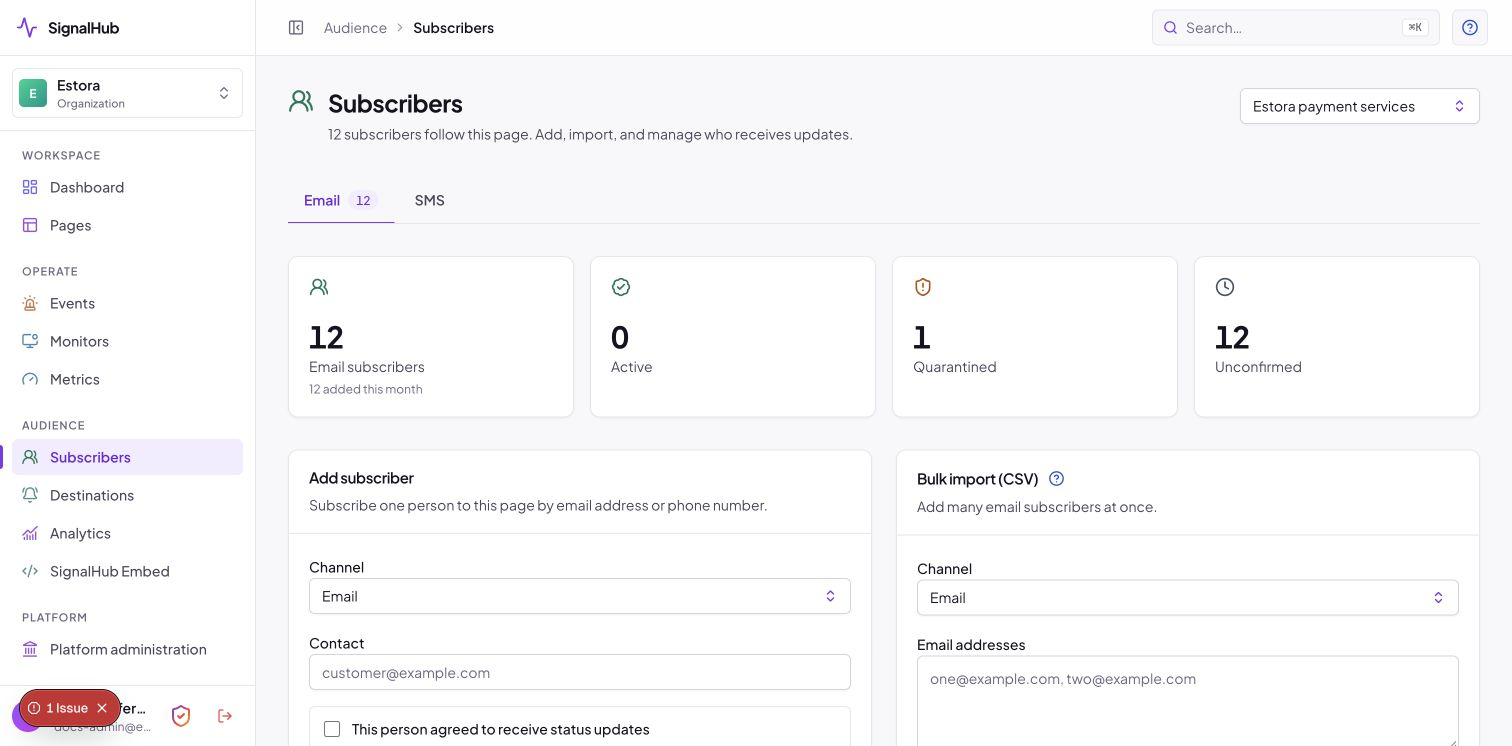
Subscribers by email, SMS and webhook.Delivery readiness and team destinations.
Channel
Audience
Readiness requirement
Email
Verified page subscribers.
SMTP configured and delivery worker healthy.
SMS
Verified phone subscribers where enabled.
An SMS provider (Twilio, Vonage, Plivo, Telnyx, Sinch, ClickSend, Textmagic or Africa's Talking) set up by an Admin, and a healthy worker.
Team destinations (23, including Slack, Teams, Discord, Google Chat, PagerDuty, Opsgenie and ntfy)
Public feed or revocable signed token for protected access.
Subscriber workflow
Visitors request a one-time code and verify ownership before activation. Administrators use Subscribers to filter by page/channel, import approved email contacts, quarantine a contact without deleting it, and export CSV. Treat subscriber contact information as protected operational data.
Delivery troubleshooting order
Confirm the worker is ready and recently heartbeating.
Confirm the provider is enabled in installation configuration.
Confirm tenant credentials and destination verification state.
Inspect the queued attempt, retry schedule, last error, and dead-letter state.
Send a controlled test before replaying a broad set of deliveries.
Automate with scoped credentials, not browser sessions
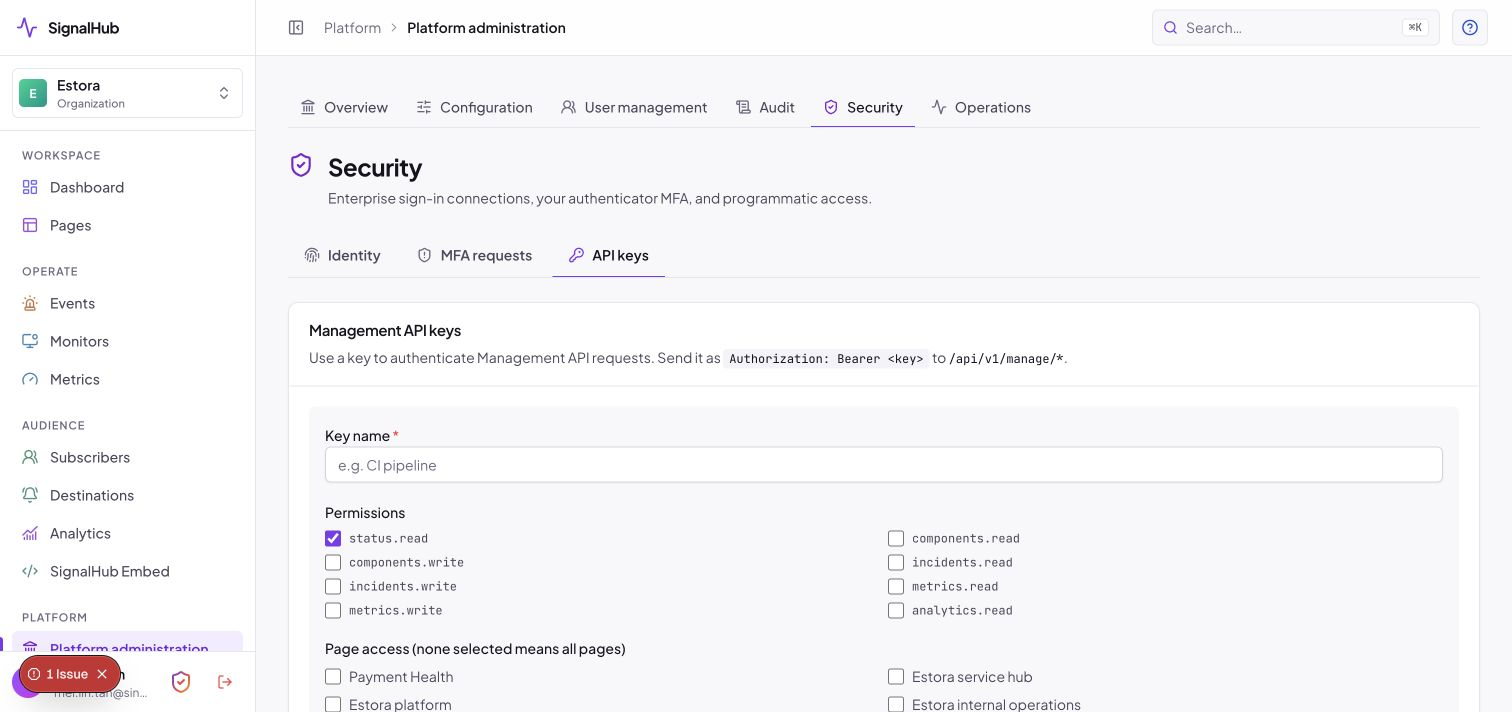
API keys with scopes, expiry and network limits.Embed an incident banner and a live status badge.
Management API keys
Open Platform administration → Security → API keys, select the page context, name the integration, and choose only required scopes.
Add page restrictions, expiration, and source CIDRs where practical.
Copy the token once into a secret manager. SignalHub stores its hash and cannot show the full token again.
Send Authorization: Bearer <token> to /api/v1/manage/*.
Rotate before expiry or immediately after suspected exposure; revoke the old key and verify audit evidence.
curl -fsS https://status.example.com/api/v1/manage/incidents \
  -H 'Authorization: Bearer <api-key>' \
  -H 'Content-Type: application/json' \
  --data '{"pageId":"<page-id>","name":"Elevated API errors","status":"INVESTIGATING","impact":"MINOR","body":"We are investigating elevated errors on the public API.","pageWide":true}'
Use the live OpenAPI 3.1 contract at /api/openapi as the authoritative request/response reference for the deployed version.
Purpose-specific integrations
Component automation token: updates one component through /api/v1/webhook-component/:token.
Heartbeat token: records expected job activity through /api/v1/heartbeat/:token.
Embed: incident banner script for another site.
Badge: compact dynamic status response.
Public status API: page health JSON with page access rules enforced.
Feeds: RSS/Atom for public pages or revocable signed access.
Signed outbound webhooks
Register and test an HTTPS endpoint, copy its secret once, and validate the HMAC signature against the exact raw request body. Reject invalid timestamps/signatures, process event IDs idempotently, return success promptly, and move slow work to the receiver's queue. Rotate secrets after exposure.
Manage human identity and session risk
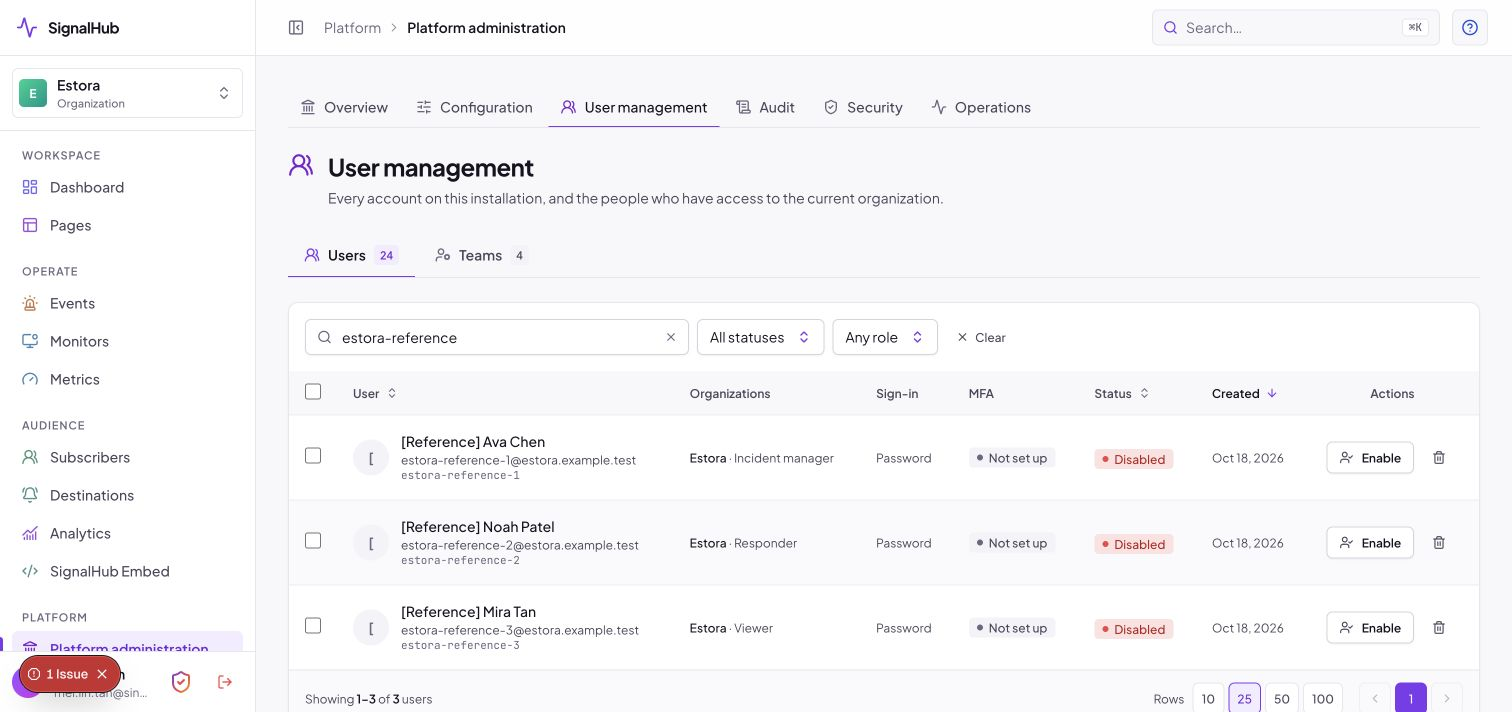
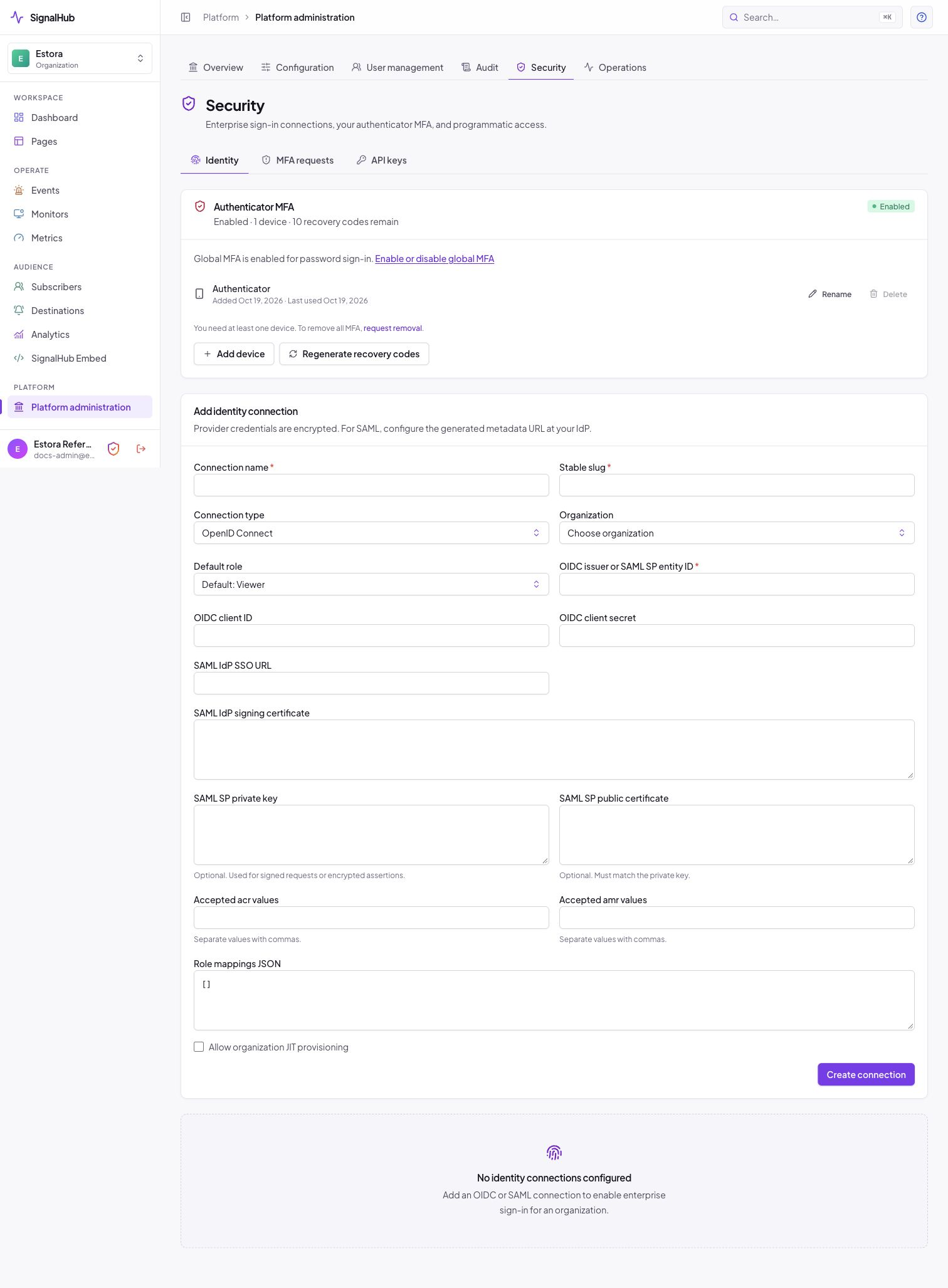
Users, roles and page-level access.Identity connections for OIDC and SAML, plus SCIM tokens.Active sessions: revoke a device or sign out all others.
Create an organization user
Open Platform administration → User management → Teams, choose Add a team member, and enter name, user ID, email, role, and optional page scope.
For a new local identity, set a temporary password through the protected workflow. The user must change it at first sign-in.
For an existing identity, add the organization membership without replacing its current authentication method.
Review access after role changes, team transfers, and incident rotations. Remove or revoke access immediately when no longer needed.
Security menu
Set up authenticator-app MFA (up to two devices), save the recovery codes, and see Multi-factor authentication below.
Review active sessions and revoke unknown or stale sessions.
Change passwords through the authenticated flow; relevant sessions are revoked.
Configure OIDC or SAML using the callback/metadata values shown by SignalHub.
Test identity connections before enforcing them.
Create and rotate SCIM bearer tokens; test create, update, group mapping, disable, and delete behavior.
Multi-factor authentication
Authenticator-app codes (Google Authenticator, Microsoft Authenticator, Authy, 1Password and similar) protect sign-in. There is one installation-wide switch, off by default, and public status pages are never affected.
Turn it on. An Admin opens Platform administration → Configuration → Runtime → Sign-in policy, switches on Require authenticator codes, saves the change and presses Keep within two minutes. Create a second Admin first. Turning it on signs out every other session.
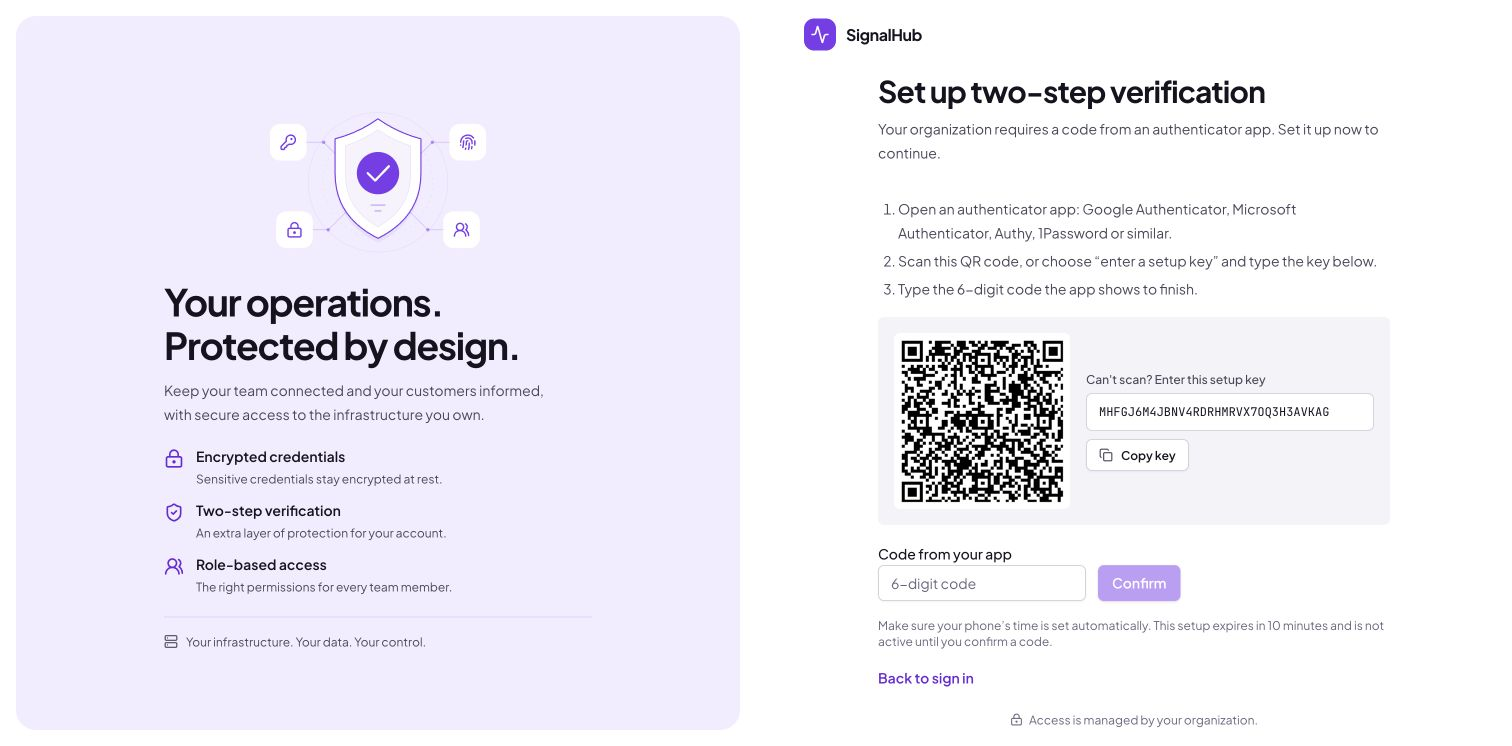
Enroll. After the password, people without a device are taken straight to setup: scan the QR code (or type the setup key), enter the six-digit code, then save the ten one-time recovery codes and tick I've saved these. A setup that is not confirmed within 10 minutes is discarded.
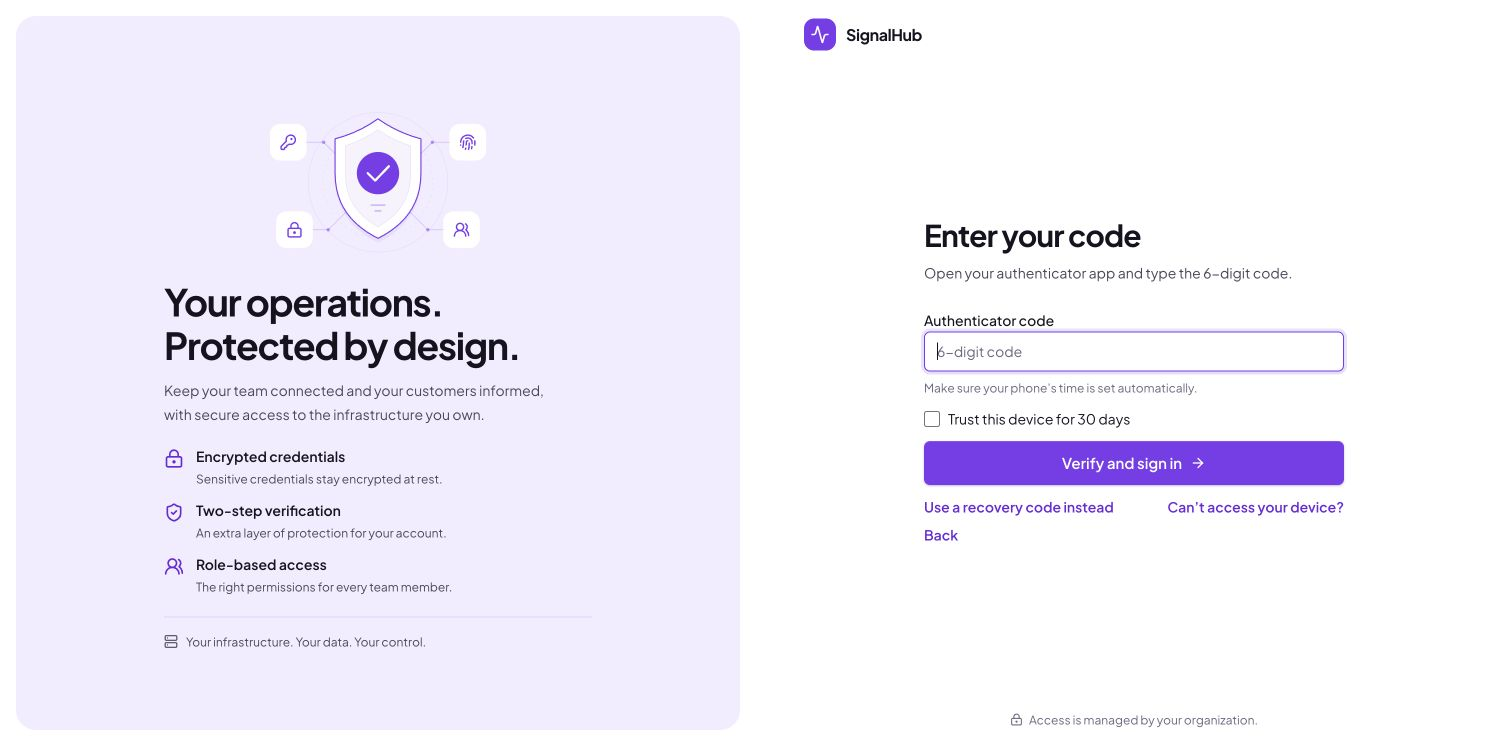
Sign in. Step one is the password, step two the code. Trust this device for 30 days skips the code in that browser. Five wrong codes lock attempts for 15 minutes.
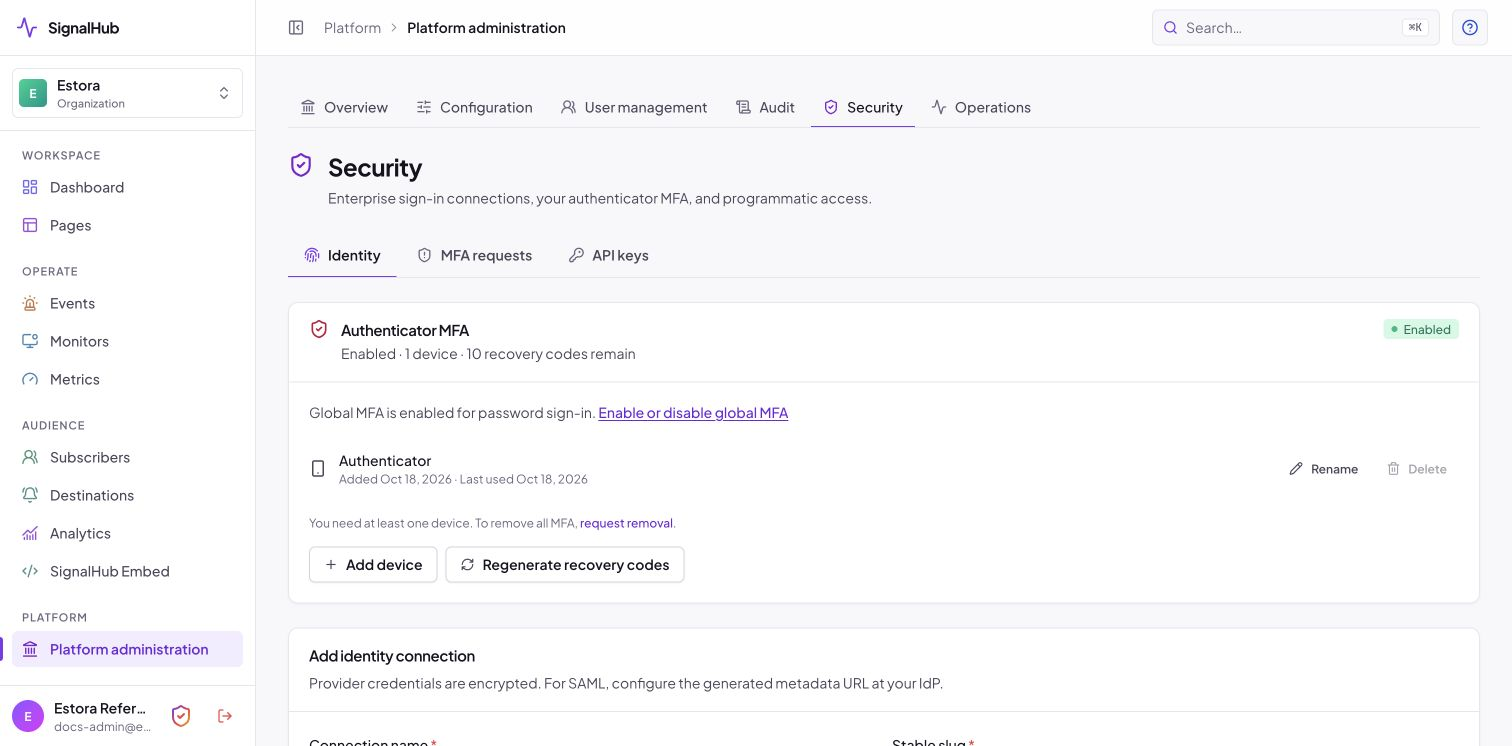
Manage devices. Open Security (the shield in the sidebar footer, or Platform administration → Security for Admins): rename a device, add a second one (confirm with a code from the first), delete one (needs a fresh code and a second device remaining), or regenerate recovery codes. You always keep at least one device and never more than two.
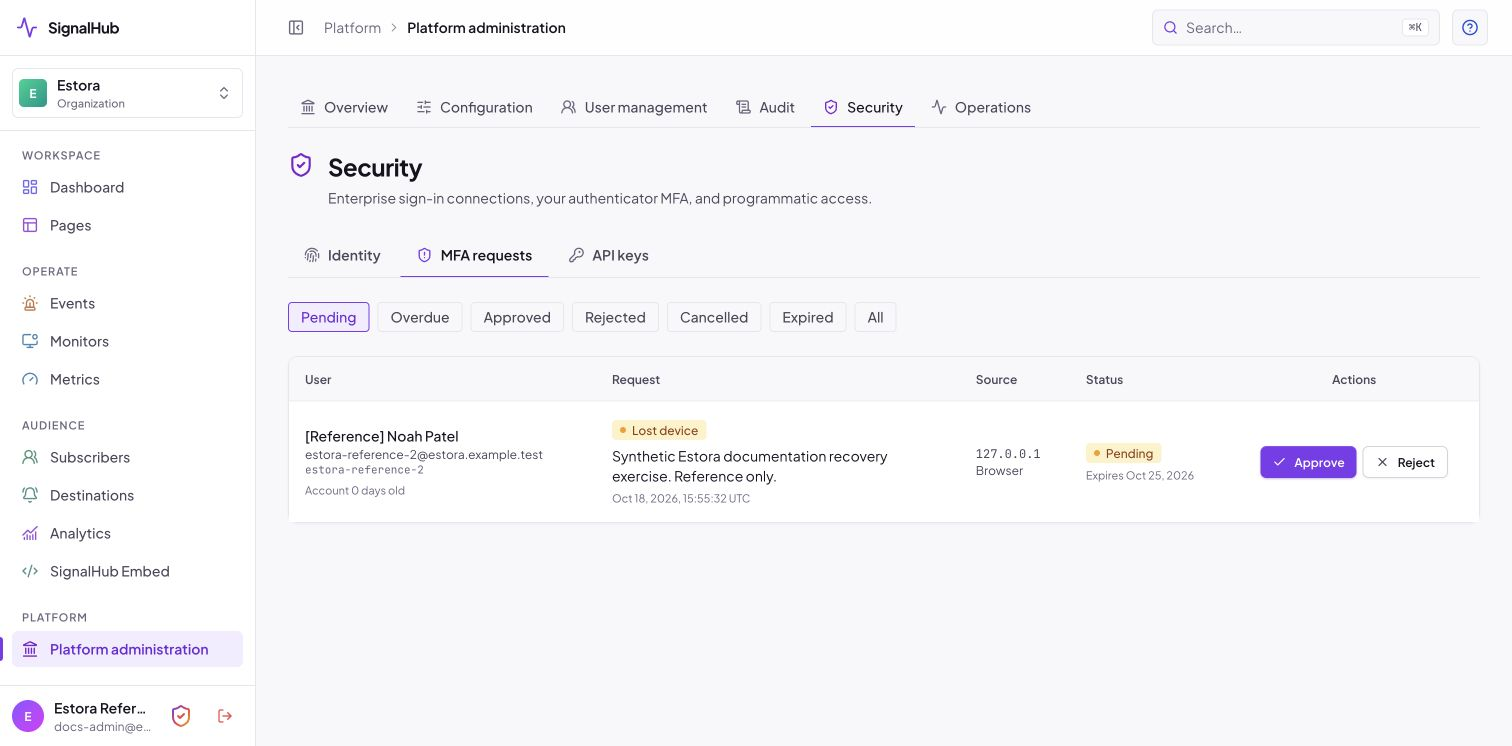
Lost a phone. Use a recovery code, or choose Can't access your device? then I lost my device. An Admin reviews the request under Platform administration → Security → MFA requests and approves with their own fresh code. Approval deletes all devices and codes, signs the person out everywhere and requires a new enrollment at next sign-in.
An Admin cannot approve their own request. Only when you are the sole Admin does a clearly labelled break-glass action appear (password and typed confirmation, audited, owner emailed). If nobody can sign in, the server operator runs signalhubctl reset-password --username USER_ID --clear-mfa. A password reset never removes MFA. Full guide: docs/mfa.md.
Preserve recovery access. Before enforcing SSO or changing role mappings, verify a local Admin account, MFA recovery material, canonical URL, and direct database-backed sign-in path.
Operate all organizations from the unified Admin console
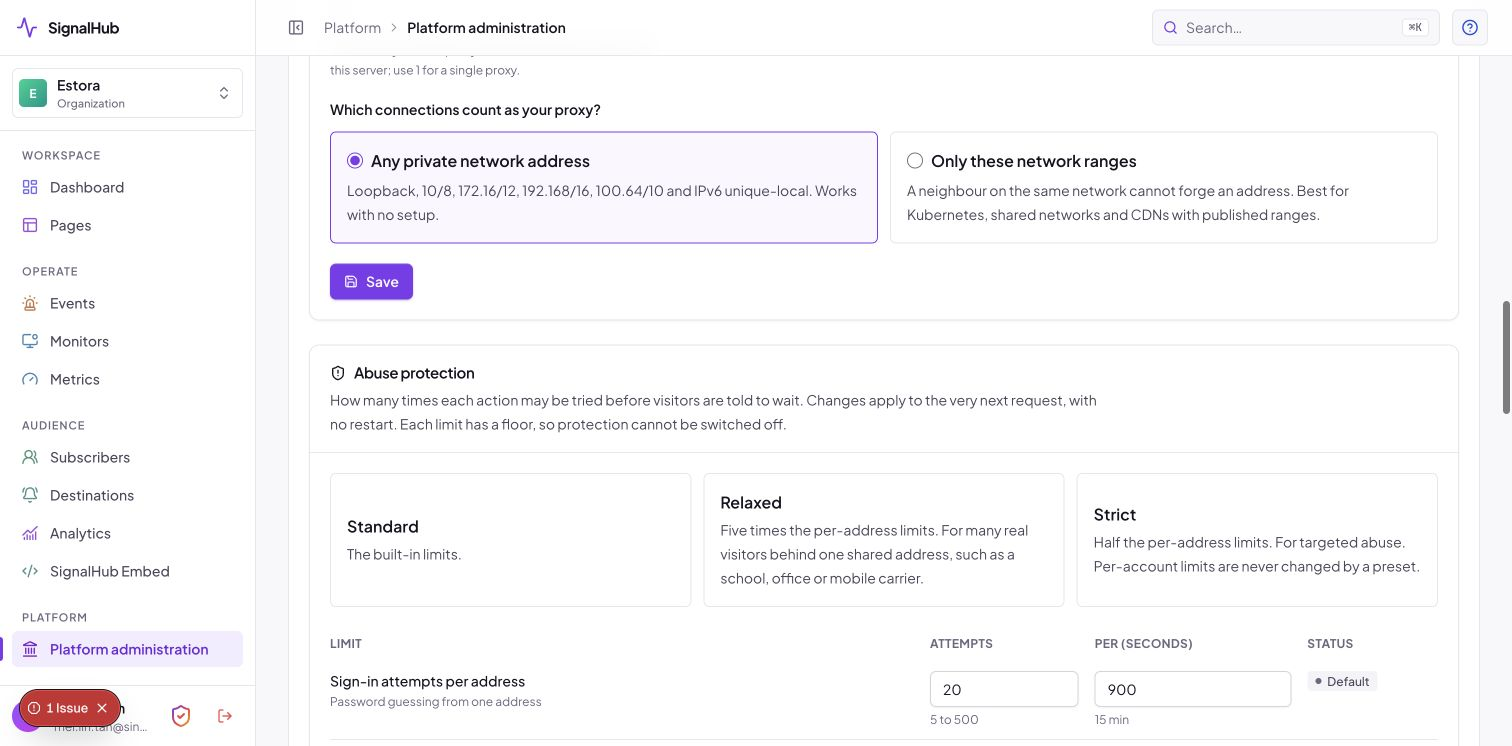
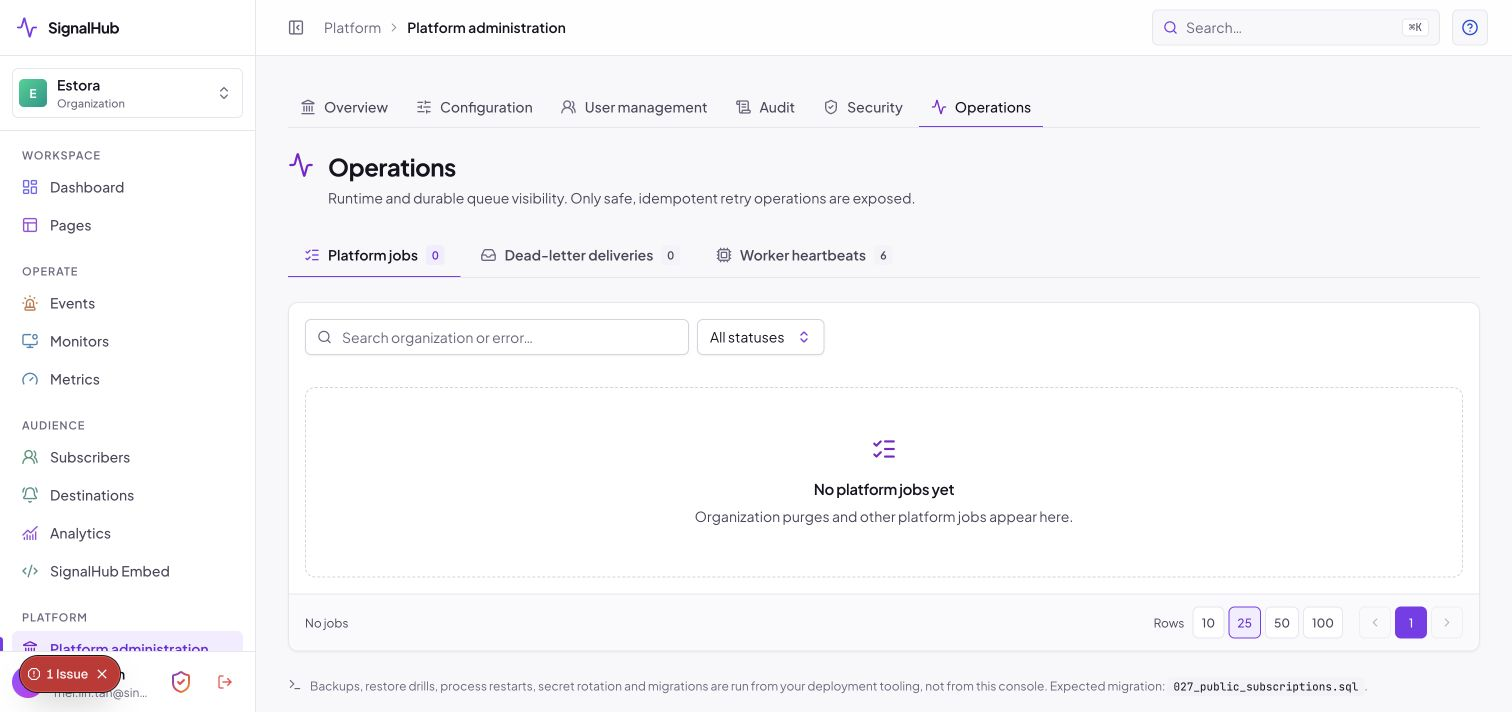
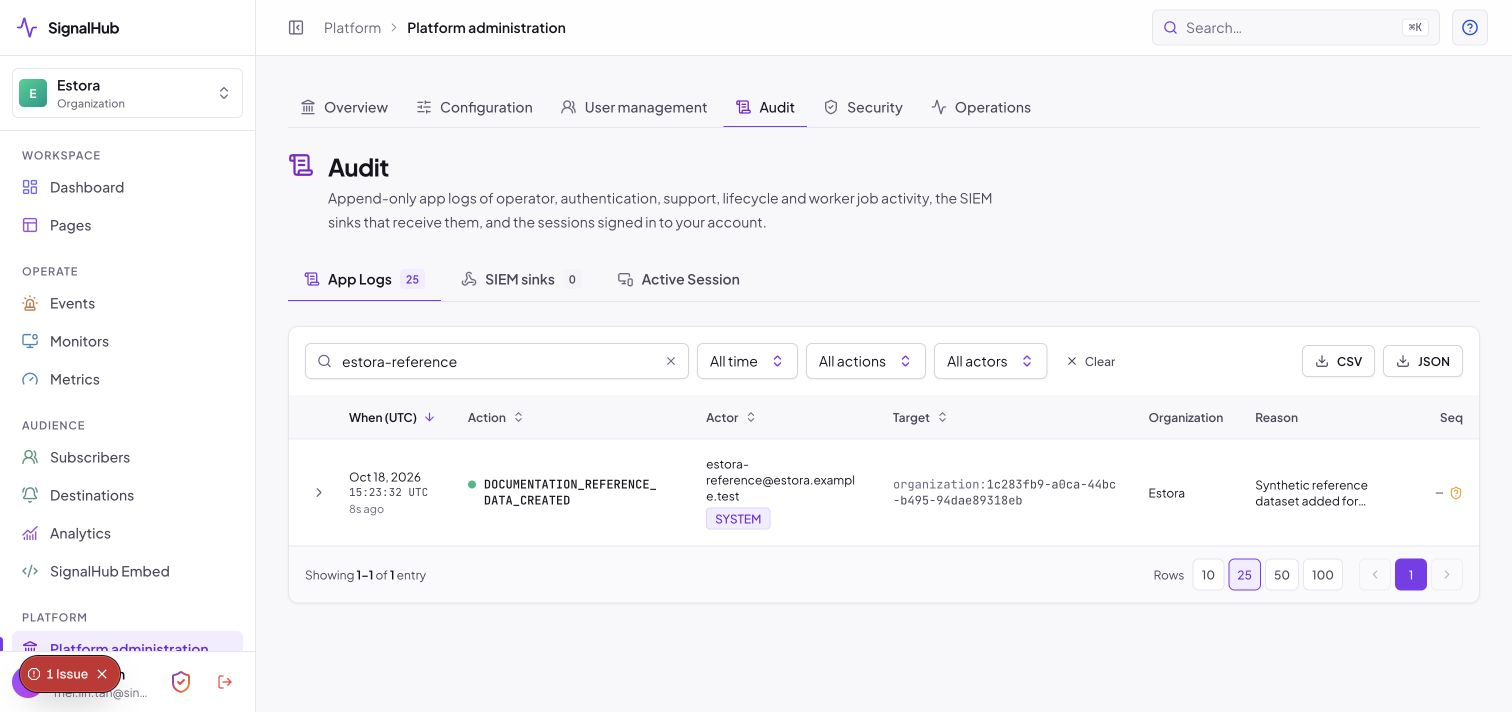
Platform overview: organizations, identity, database, worker and queues.Abuse protection: every limit is adjustable within safe floors.Operations: platform jobs, dead-letter deliveries and worker heartbeats.Audit: the sealed log, export and SIEM sinks.
Admins see the Platform group and use paths under /organization/platform. These controls have installation-wide impact and require an explicit operational reason where the workflow requests one.
Tab
Use it for
High-risk considerations
Overview
Organization counts, identities, database, worker, queues and dead letters; provision, suspend, reactivate and queue purge for organizations.
Treat stale worker or database state as an incident. Suspension freezes tenant traffic; purge is permanent and audited.
Configuration
Platform configuration (email, SMS and destination providers, retention), Runtime (system health, proxy trust, HTTPS, sign-in policy including Require authenticator codes, abuse protection and security checklist) and Organization settings.
Changes that could lock you out apply on trial: press Keep within two minutes or they revert. Providers affect every organization.
User management
Users: every account with its MFA status, disable, enable, delete, manage or reset MFA, unlock. Teams: members of the organization you are in.
Disabling affects every organization and revokes sessions. Resetting MFA signs the person out everywhere and needs your own fresh code.
Audit
App logs (sealed, hash-chained, exportable), SIEM sinks and Active session (your signed-in devices).
Validate sink signatures and retries; verify the chain with signalhubctl audit.
Security
Identity (your authenticator MFA; OIDC, SAML and SCIM), MFA requests (approve or reject lost-device requests) and API keys.
Test identity connections before enforcing them. An administrator cannot approve their own MFA request.
Operations
Platform jobs, dead-letter deliveries, worker heartbeats, retries and migration state.
Understand the failure before retrying; avoid duplicate external effects.
Organization lifecycle
Active→Suspended→Deleting→Purged
Suspension is reversible; purge is not. Before purge, confirm the organization slug, business approval, legal/retention requirements, exports, backups, and reason. Monitor the queued job and tombstone evidence to completion.
How customers and employees use a status page
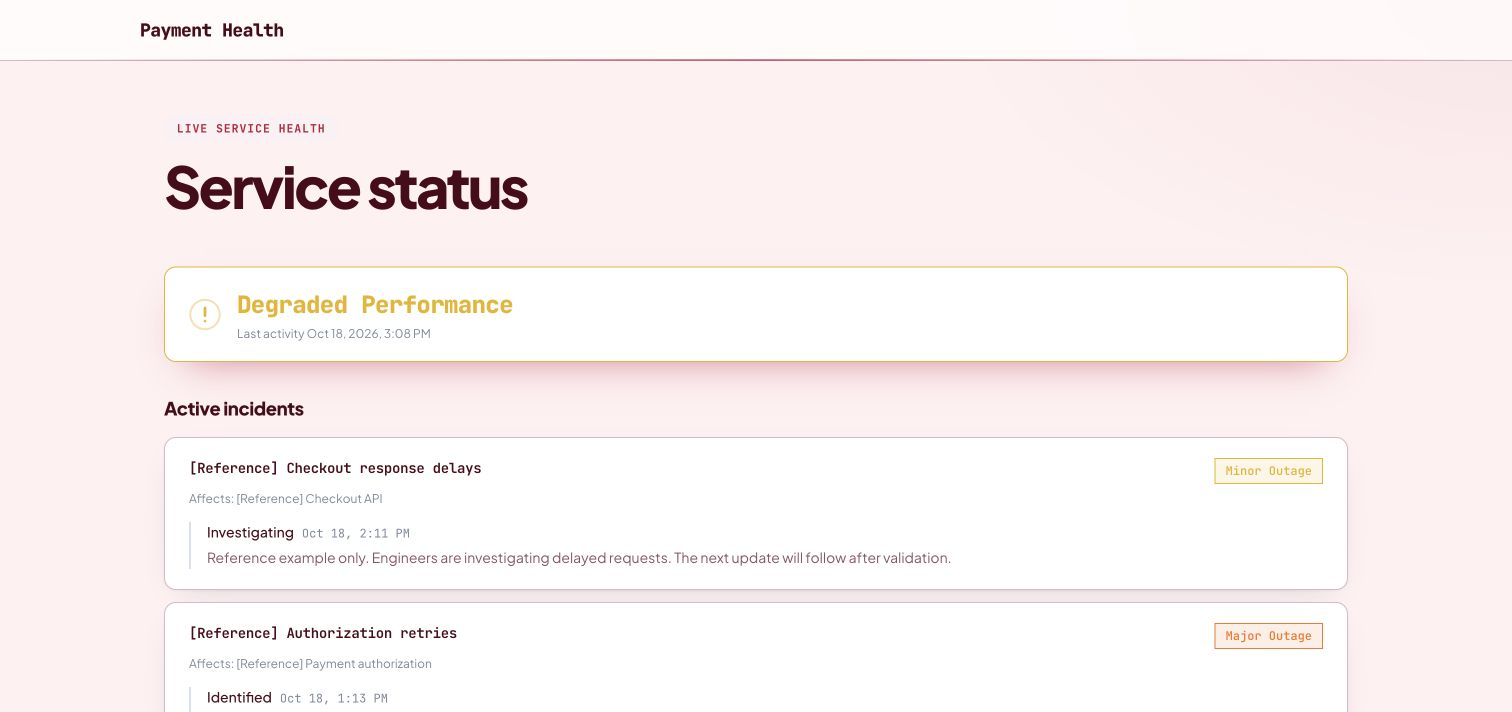
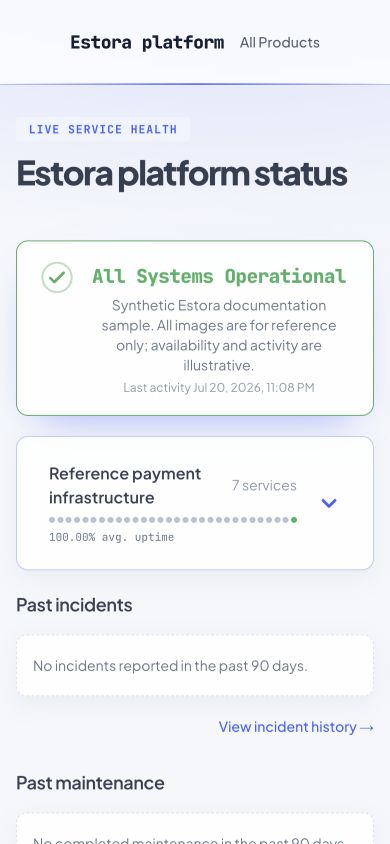
A public status page with an active incident.Visitors subscribe by email, SMS or feed. Email and SMS are verified with a code.A hub aggregates several status pages.The same page on a phone.
The page header communicates overall status. Service groups explain which capabilities are affected.
Active incidents and maintenance show the latest public state and affected services.
History contains resolved incidents, completed maintenance, and available postmortems.
Metrics show published numeric history such as response time or uptime.
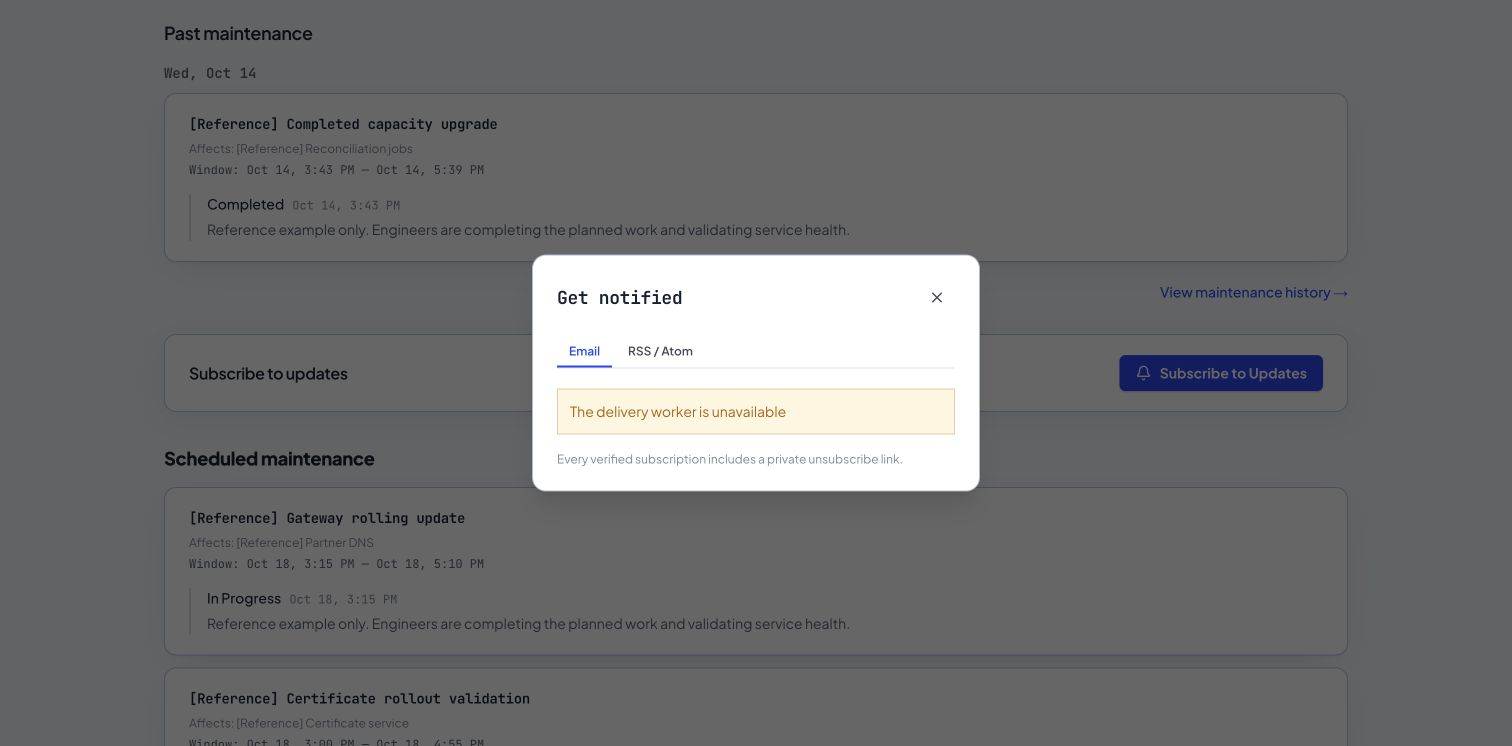
Visitors subscribe by requesting and entering a one-time verification code, for all services or only chosen ones, and email subscribers receive a confirmation. Every message links to a preferences page where they can change services or unsubscribe; mail clients also offer one-click unsubscribe.
RSS and Atom support feed readers. Protected pages may require a revocable signed feed URL.
Private and audience pages show an access challenge and only reveal content allowed by policy.
Operators should test visitor workflows without an Admin session and with assistive/mobile layouts before launch.
Service groups, history and subscriptions
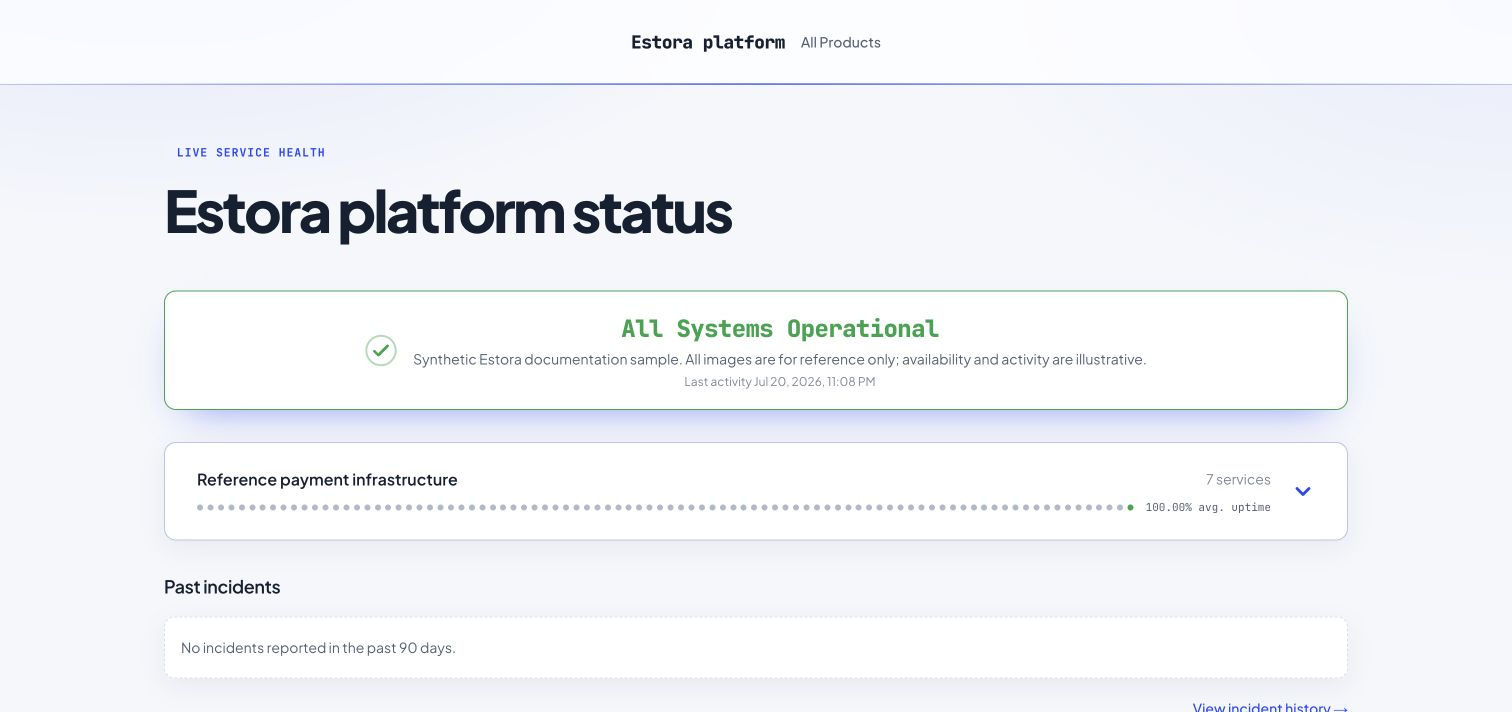
New status pages default to collapsed groups with an average uptime summary made of small solid daily circles. Choose expanded groups during creation, or change Appearance → Layout → Default service group view later and publish. The percentage excludes unobserved time; circle color reflects the worst observed service status that day. Mobile summaries show the most recent 30 circles.
Collapsed group summaries; expand to see each service.
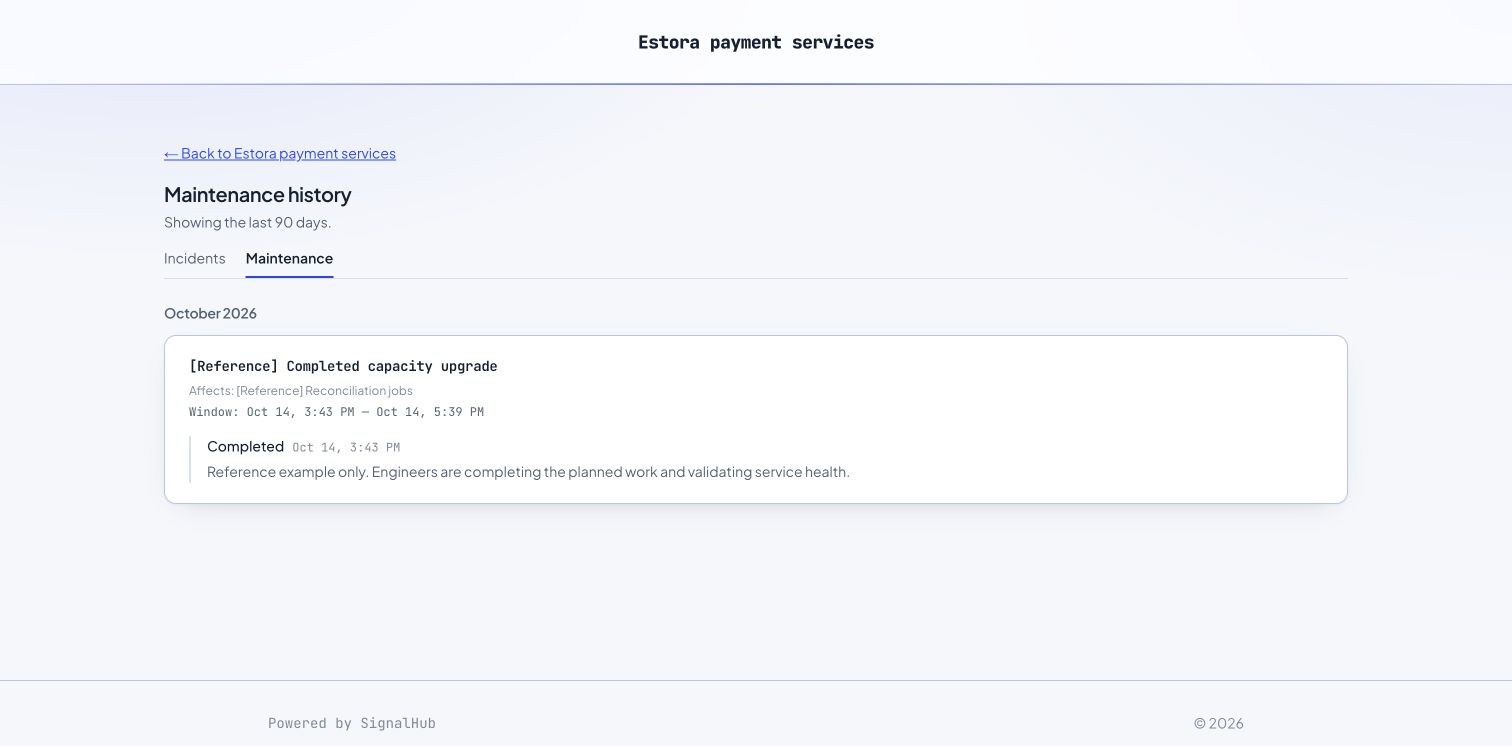
Past incidents and past maintenance each show at most 10 items with their own history link below. Both previews and full history default to the last 90 calendar days. Change Appearance → Layout → History window to 30, 60, 90, 180 or 365 days, then publish. Incident details display the postmortem directly. Public metric charts start at 90 days and remember a visitor's selection.
Maintenance history uses the same configurable date window as incidents.
Subscribe appears only when public signup is enabled globally and for the page, and at least one email/SMS provider is configured. Only usable channels are offered. A ready worker is required to send verification codes. Disabling signup does not remove existing subscribers.
Retention and displayed history
Storage defaults are 90 days for monitor checks and analytics/metric points, and 365 days for notification logs/finished delivery jobs and closed service status intervals. Platform defaults and organization overrides are applied by hourly worker cleanup. Incident records and timelines remain stored; active intervals and unfinished deliveries are preserved. Public display windows are configured separately and cannot recreate expired data. See the public pages and data lifecycle guide for exact behavior and sample-data commands.
Repeatable checks for a dependable status service
Each operator shift
Review dashboard, active incidents, upcoming maintenance, worker readiness, queue depth, and dead letters.
Confirm external monitoring can reach public pages.
Handoff open communication commitments and next-update times.
Weekly
Review failed monitors, noisy thresholds, delivery retries, certificate warnings, stale API keys, and audit anomalies (including repeated MFA_LOGIN_FAILED and MFA_LOCKED events).
Confirm backups completed and asset protection is healthy.
Review scheduled maintenance and its customer-facing communications for accuracy.
Monthly
Review users, roles, page scopes, sessions, API keys, webhook endpoints, and identity mappings.
Review MFA: people without a device, locked-out accounts and any Overdue removal requests (Platform administration → Security → MFA requests).
Patch the base image and dependencies through the organization's release process.
Verify audit chains and SIEM delivery.
Quarterly
Restore PostgreSQL and assets into an isolated environment.
Test Admin recovery, MFA recovery codes, SSO failover, and SCIM deprovisioning.
Exercise a test incident, maintenance window, subscriber delivery, webhook verification, and key rotation plan.
Whether the code was already used (each works once), whether the account is locked (15 minutes after five wrong codes), and the audit log for MFA_LOGIN_FAILED.
Someone is locked out of MFA
The lockout message shows the minutes left.
An Admin can Unlock them under User management; otherwise a recovery code, a removal request, or signalhubctl reset-password --clear-mfa.
MFA emails do not arrive
An email provider under Configuration and the public address.
Delivery logs and the worker. MFA itself works without email.
Component stays degraded
All effective-status sources.
Active incident, maintenance, manual state, and every linked monitor.
Use request IDs to correlate web, worker, provider, and audit events. Redact tokens, passwords, subscriber contacts, and encrypted material before sharing diagnostics.
SignalHub terms
Organization
A tenant boundary containing memberships, pages, incidents, monitors, subscribers, integrations, and audit data.
Status page
A visitor-facing service-health experience identified by its slug.
Hub
A parent directory of status pages for a portfolio, business unit, region, or brand.
Service / component
A customer-understandable capability whose effective health may come from manual state, incidents, maintenance, and monitors.
Incident
An unplanned service-impact record with status, severity/impact, affected services, updates, resolution, and optional postmortem.
Maintenance
A planned service window with scheduled lifecycle and affected services.
Monitor
A worker-executed availability check with failure and recovery thresholds.
Metric
A numeric time series published as a chart.
Subscriber
A verified contact that follows a status page through an enabled channel.
Destination
A tested team channel or signed webhook endpoint receiving status events.
Worker
The background runtime for checks, notifications, exports, audit delivery, retention, maintenance transitions, and lifecycle jobs.
Authenticator device
A phone app registered for one person's codes. At most two, never fewer than one once enrolled.
Recovery code
A one-time backup code for signing in without the app. Shown once and stored only as a keyed hash.
Trusted device
A browser that skips the code for 30 days. Revoked automatically whenever a device is added or removed.
MFA request
A request to remove all of a person's devices. Another Admin approves it, which forces enrollment at the next sign-in.
Break-glass
An audited emergency route for the only Admin to approve their own MFA request.
Installation administration
Admin-only cross-organization controls under /organization/platform.
More documentation: deployment operators should read the repository's Open-Source Enterprise Setup Guide, environment template, security policy, and live OpenAPI contract in addition to this product manual.